

Accessing Appearance Settings
- Open the Sensbot AI app in your platform admin panel (Shopify, IdoSell, Upgates, Shoper, etc.)
- In the main menu, choose the store you want to customize
- Select the locale/language for which you want to modify the chatbot
- Open the Settings tab to start adjusting chatbot options
Basic Identity Settings
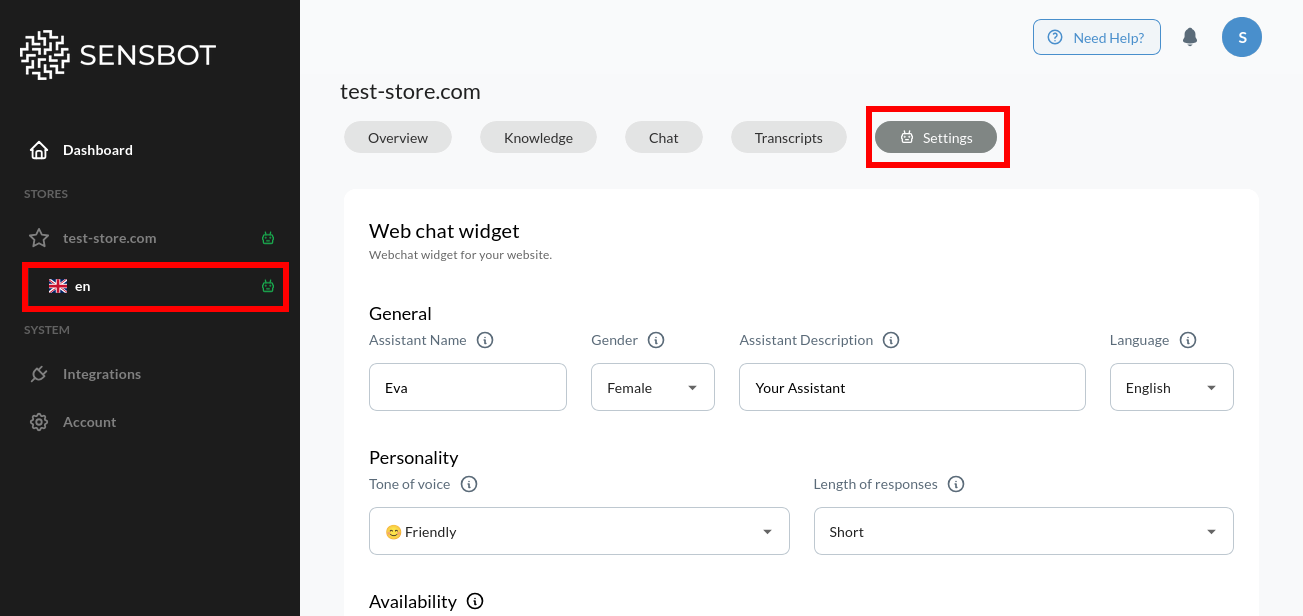
Assistant Name
The assistant’s displayed name (e.g., Luna, Shop Helper, Alex from PMBike). This name appears under the avatar in the chat header, helping humanize the chatbot experience and make interactions feel more personal.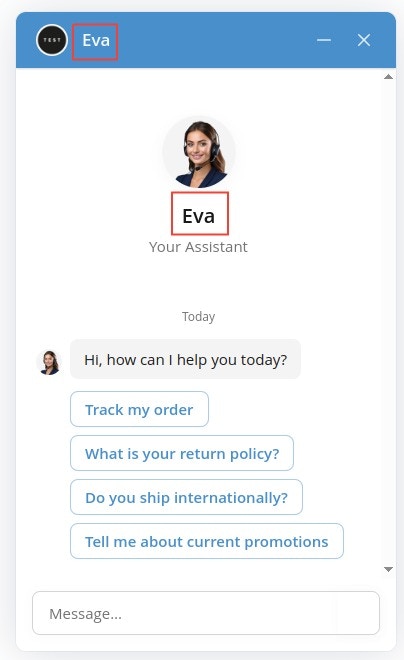
- For a bike shop: “Alex from PMBike”
- For fashion retail: “Emma”
- For tech support: “Tech Helper”
Assistant Description
Displayed below the assistant’s name inside the chat window header. Use it to describe your assistant’s role and set expectations.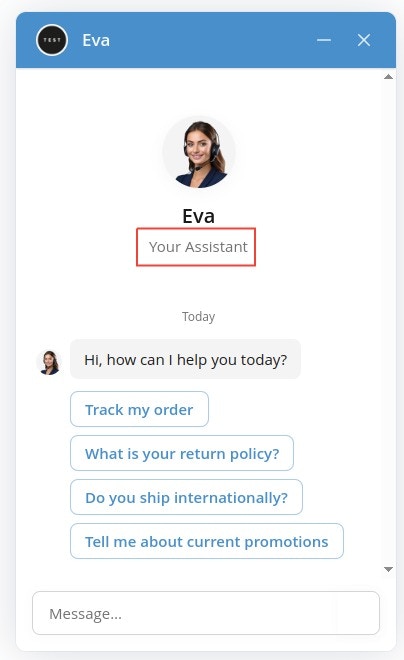
- “Your personal shopping assistant”
- “Here to help with orders and returns”
- “Product expert & support specialist”
Gender
Choose a gender (Male, Female, Other) to personalize the assistant’s voice and persona. This helps create a consistent character for your chatbot.Language
Select the main language for this chatbot instance. The chatbot will automatically respond in this language. You can configure different languages for different locales of your store.Welcome Experience
Welcome Message
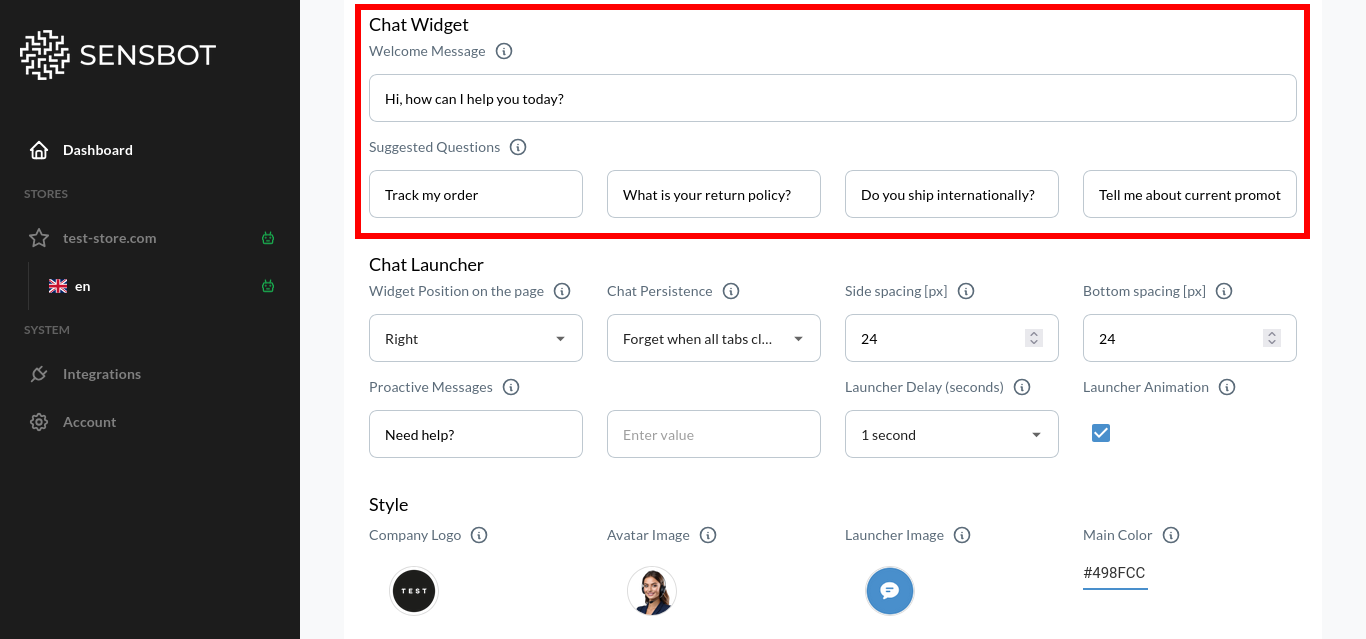
The first message customers see when they open the chat window. Make it friendly, clear, and action-oriented.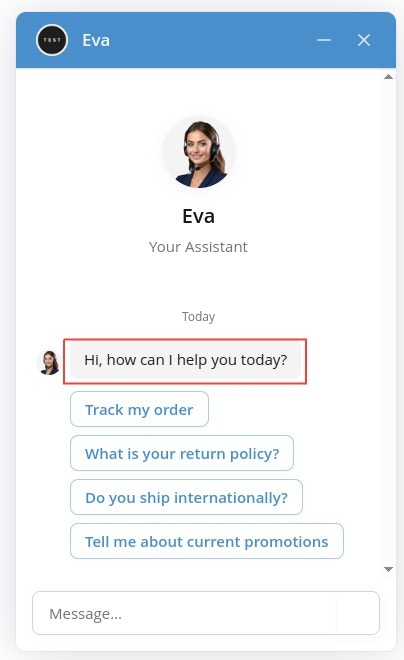
- “Hi there! How can I help you today?”
- “Welcome! Looking for something specific?”
- “Hello! I’m here to answer your questions about our products.”
Suggested Questions
Quick-reply buttons shown below the welcome message to guide users toward common topics. These help customers get started quickly without typing.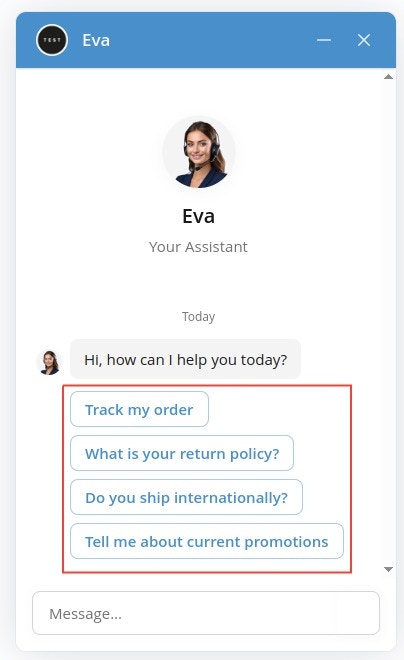
- “Track my order”
- “What is your return policy?”
- “Do you ship internationally?”
- “Help me find the right size”
- “Tell me about current promotions”
- Use 3-5 suggested questions
- Focus on your most common customer inquiries
- Keep questions short and clear
- Update seasonally (e.g., add “Holiday shipping” in December)
Next Steps
Now that you understand the basic appearance settings, explore these specific customization areas:Visual Customization
- Colors & Branding - Customize color schemes, logos, avatars, and brand elements
- Widget Layout & Position - Adjust positioning, spacing, and display options
Behavioral Customization
- Chat Availability & Persistence - Control when chatbot appears and how it remembers conversations
- Proactive Engagement - Configure proactive messages, launcher delays, and animations
Additional Configuration
- Behavior & Tone - Define how your chatbot communicates
- Knowledge Base - Add content for accurate, brand-specific answers