

How the Knowledge Base Works
When you install the Sensbot AI app, it automatically scans your online store and adds important pages to the chatbot’s knowledge base, such as:- Shipping and delivery policies
- Returns and exchanges information
- Terms and conditions
- Privacy policy
- About us / Company information
- Contact page
- FAQ pages (if available)
- The chatbot reads and indexes the text content from these pages
- When customers ask questions, the AI searches this knowledge base
- Answers are generated based on your actual policies and information
- You maintain full control over what content is included
Accessing Knowledge Settings
- Open the Sensbot AI app in your platform admin panel
- In the main menu, select your store
- Choose the locale/language you want to modify
- Click on the Knowledge tab
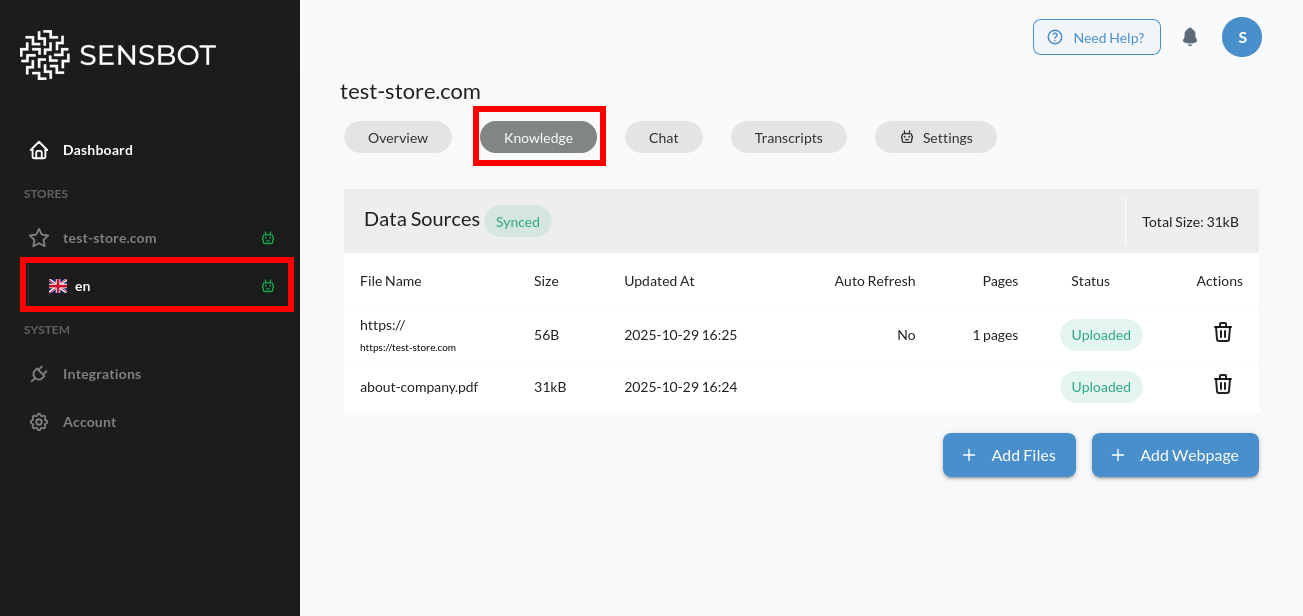
Total Knowledge Base Size: 241.5 KB
Adding New Knowledge Sources
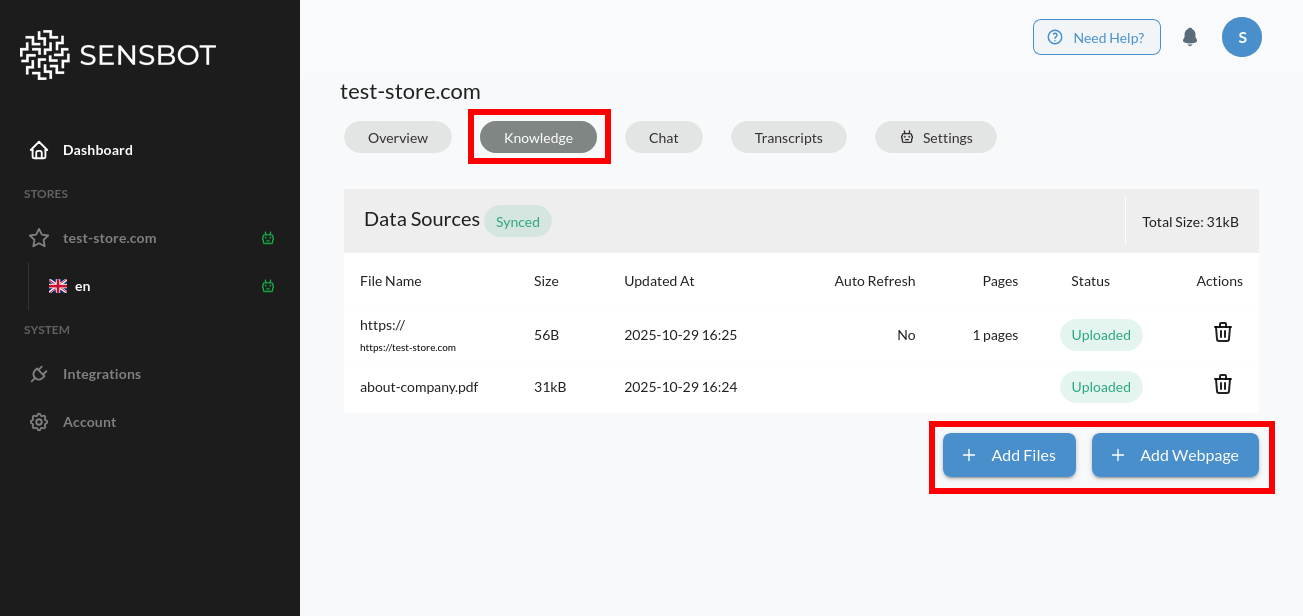
At the bottom of the Knowledge page, you’ll find two main options:Add Files
Upload documents and files for the chatbot to learn from. Supported File Formats:- PDF (.pdf) - Documents, guides, manuals
- Word Documents (.doc, .docx) - Policies, procedures, guides
- Excel Sheets (.xls, .xlsx) - Product lists, pricing tables, specifications
- Text Files (.txt) - Simple text content, notes, FAQs
- Click “Add Files” button
- Select one or multiple files from your computer
- Wait for upload and processing (may take 30 seconds to few minutes)
- Files appear in your knowledge base list
- Chatbot automatically indexes the content
- ✅ Use clear, descriptive file names
- ✅ Keep files updated (re-upload newer versions)
- ✅ Organize content logically (one topic per file)
- ✅ Use text-based PDFs (not scanned images without OCR)
- ✅ Remove outdated files to avoid conflicting information
Add Webpage
Connect any public webpage from your website (or external sources) to your knowledge base. How It Works:- Click “Add Webpage” button
- Enter the full URL of the page
- Sensbot crawls and extracts the text content
- Content is indexed and added to knowledge base
- Page is automatically refreshed periodically to stay up-to-date
- Look & Appearance Settings - Customize the visual design
- Behavior & Tone - Configure communication style
- Return to main guide - Review other customization options