

Sensbot for IdoSell Email Assistant – Installation & Setup Guide
Bring intelligent AI-powered email assistance to your IdoSell store with the Sensbot Email Assistant. Follow these steps to install and configure it.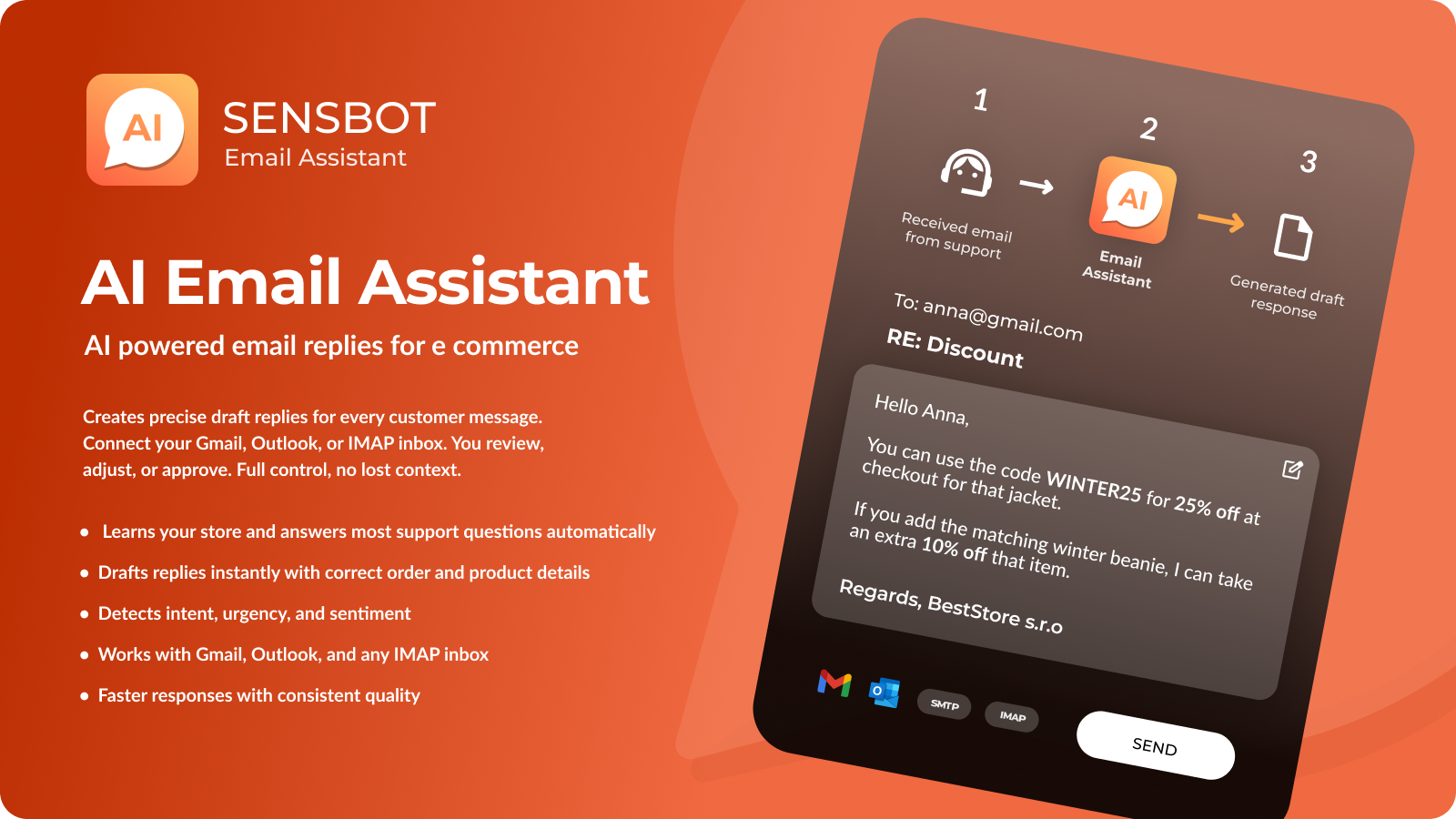
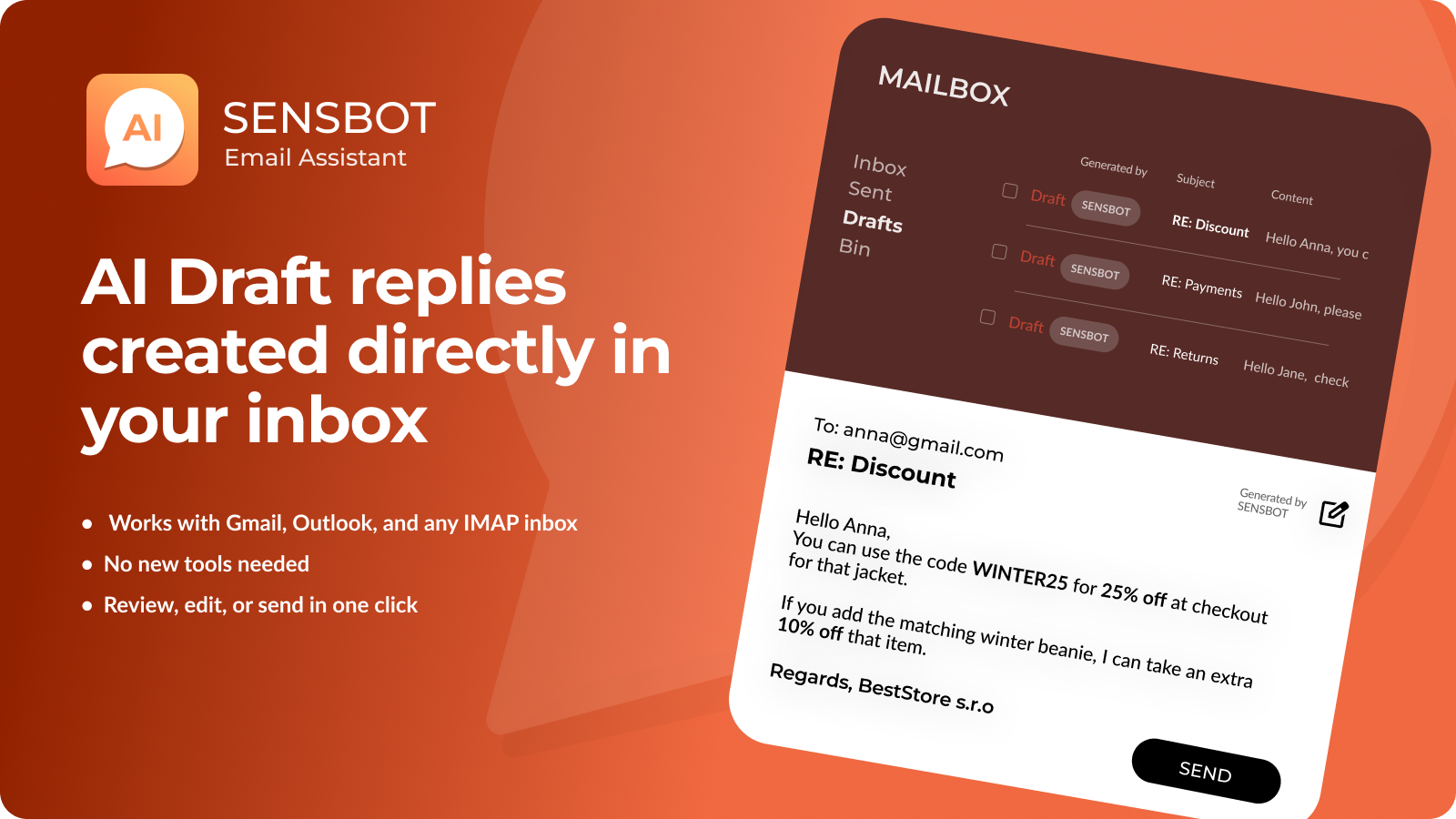
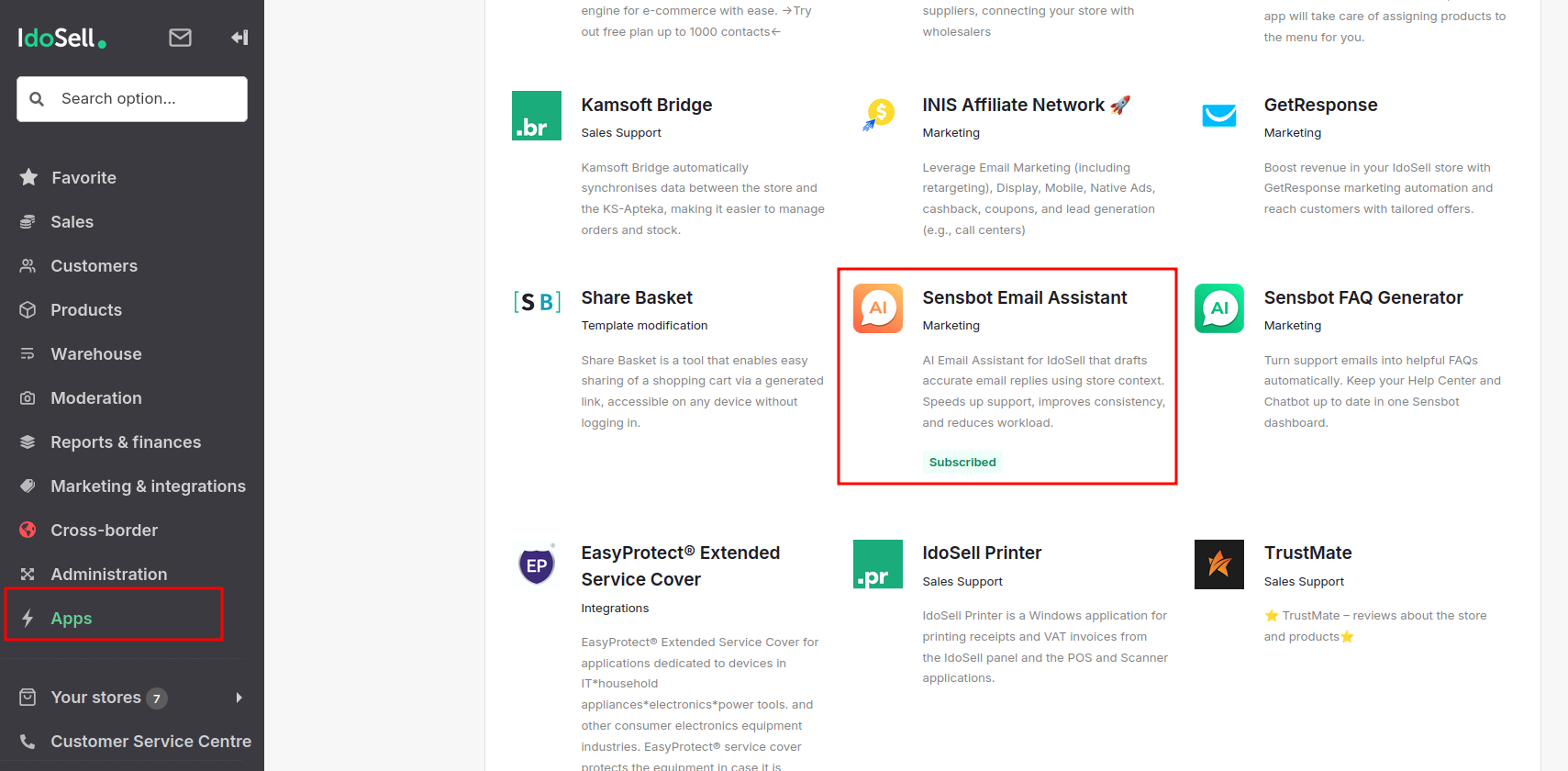
✅ Step 1: Install Sensbot from the Apps Section
- In your IdoSell admin panel, go to Apps.
- Search for Sensbot AI in the list.
- Click Install and follow the prompts.
✅ Step 2: Open Sensbot Settings
- After installation, go to Customers > Sensbot Email Assistant.
- The Sensbot settings panel will open (in an embedded view).
- Under your store name (e.g., “test-store.com”), you will see a new “Email Assistant” tab next to the chatbot settings.
⏳ Note: Sensbot will begin syncing your store’s products and orders. This may take a few minutes for small stores and up to a few hours for large stores, depending on the number of products and orders. You can proceed with configuration while syncing continues in the background.
✅ Step 3: Connect Your Email Account
- Click on the “Email Assistant” tab.
- Connect your email account:
- Gmail: Log in and confirm access permissions.
- Outlook: Log in and confirm access permissions.
- IMAP/SMTP: Enter your email server settings.
💡 Supported Email Providers: Sensbot Email Assistant works with Gmail, Outlook, and any IMAP/SMTP inbox. We also support connecting some helpdesk platforms. Please contact us at support@sensbot.ai for more information.