

Email Assistant - General
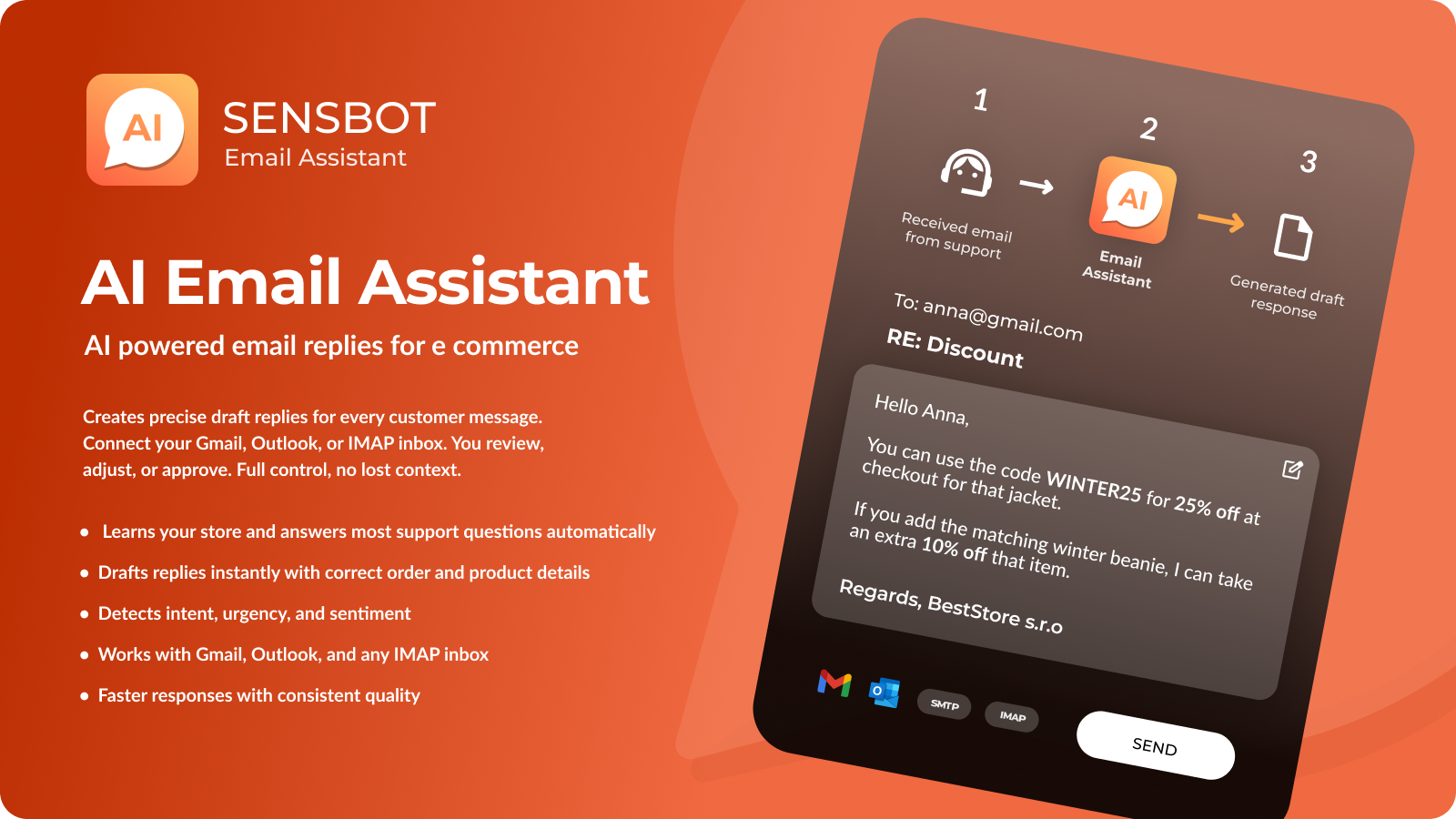
What it does
- Connect your inbox — Gmail, Outlook, or any IMAP/SMTP account. Sensbot processes incoming customer emails and creates draft replies or sends them automatically according to your rules.
- Use your store data — Products, orders, and policies are used so replies stay accurate and on-brand.
- Match your style — You can let Sensbot auto-detect your writing style from past emails or set it manually. All settings can be updated later.
What you need
- A Sensbot account with Email Assistant enabled (e.g. via IdoSell or your platform).
- An email account to connect (Gmail, Outlook, or IMAP/SMTP).
Getting started
- Open the Sensbot platform and go to your store details (use the sidebar).
- Click the Email Assistant tab at the top to open integration options.
- Click Connect Email Account and choose your provider (Outlook, Gmail, or another). Complete the connection in the popup.
- Set up email assistant settings to your preference. If you are unsure, you can leave defaults and change them later in Email Assistant Configuration.
- For writing style, use auto-detect to let Sensbot adapt from your sent emails, or pick a style manually. Review the configuration and click Save when ready.
- Open the Email Assistant Configuration panel for advanced options (auto reply rules, custom instructions, filters). Use the instructions section there for tips on getting the best results.
- Return to the main Email Assistant view to see your integration status. Processed emails will appear in the list as the assistant runs.
Verifying your setup
- Send a test email to your connected inbox (e.g. from another address). On the Sensbot side, check that the email appears in the list of recently processed emails.
- If you use drafts only, open your inbox (e.g. Outlook or Gmail) and confirm that draft responses were created where expected.
- Revisit the Email Assistant tab anytime to adjust settings, check status, or refine your configuration.