

Connecting is done together with us for now. You create an invite code in Beds24 and send it to us, and we connect your properties and go through your house information with you.
Before you start
Step 1 · Open the API page in Beds24
- Log in to the Beds24 control panel.
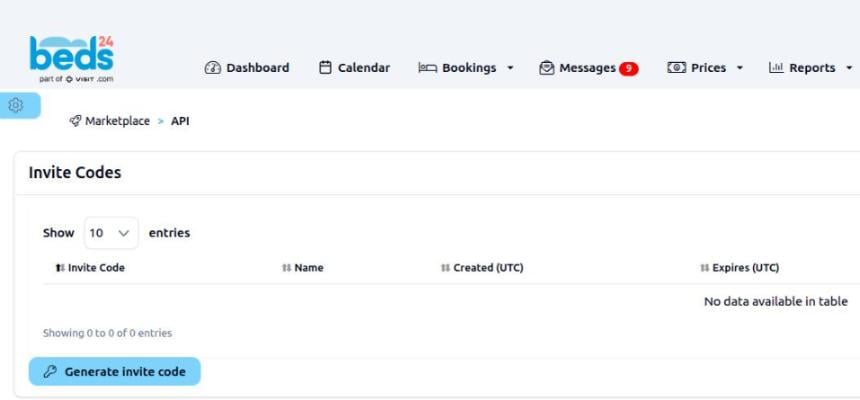
- Open Marketplace → API, or go straight to beds24.com/control3.php?pagetype=apiv2 while logged in.
Step 2 · Create an invite code
- Click Generate invite code. A window opens with a table of scopes and the columns READ, WRITE, DELETE and ALL.
- Tick these boxes, and nothing else:
- Select which properties this token can access: leave All owned by account, or choose only the properties Sensbot should answer for.
- IP address whitelist: leave it empty.
- Name for this token:
Sensbot. - Click Generate invite code. Do not use Generate long life token.
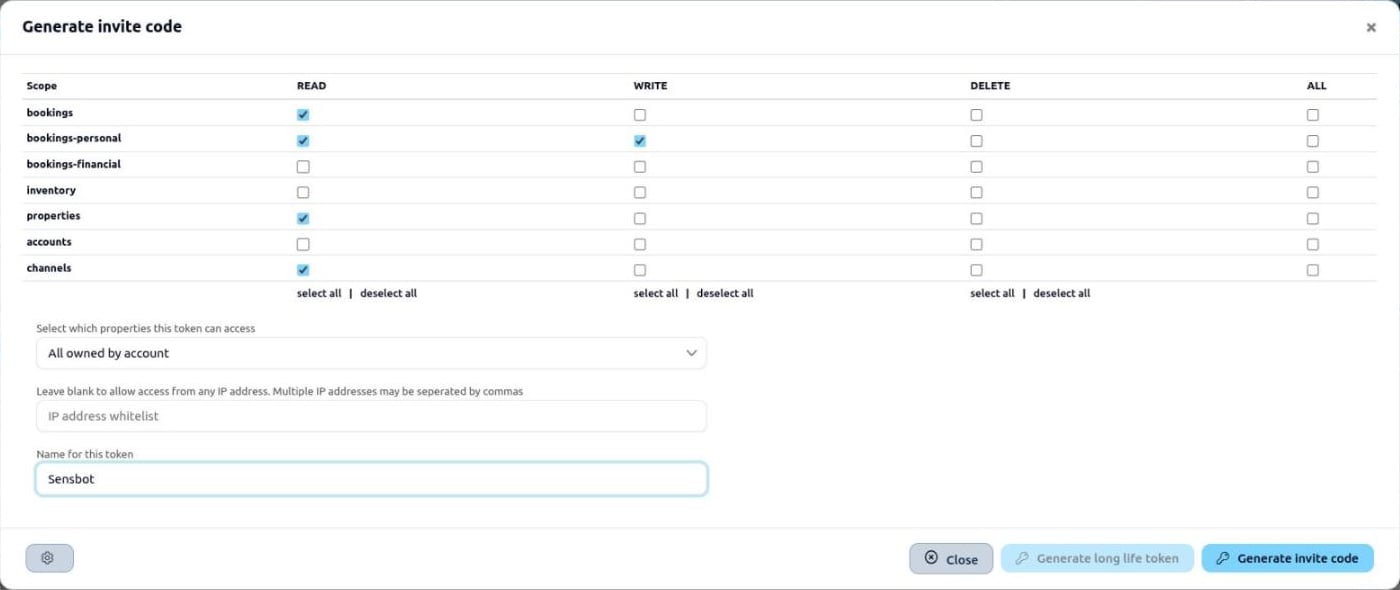
Beds24 fixes the permissions when the code is created. If you leave out bookings-personal → WRITE, Sensbot can still prepare drafts, but to switch on automatic replies later you would need to create a new code.
Step 3 · Send the code to us
Copy the code from the Invite Codes list and send it to support@sensbot.ai. The code works only once and expires 24 hours after you create it, so send it the same day. We then:- Connect your Beds24 account. The code is used up, and Sensbot’s access appears in the Refresh Tokens list on the same API page.
- Load your properties, upcoming bookings and recent guest conversations.
- Check your house information with you (house rules, check-in and check-out, directions, parking), because that is what the replies are written from.
What Sensbot reads from Beds24
If something is not in Beds24, Sensbot does not guess: the question stays with you as a draft.
Drafts and automatic replies
- New guest messages appear in the Sensbot Inbox with a draft reply. You check it, edit it if needed and send it.
- When you keep sending a type of reply without changes, it can become a candidate for automatic sending. Before anything is switched on, we check Sensbot’s answers against how you actually replied to past guests.
- Automatic sending starts with standard check-in and check-out times. Anything wider is agreed with you first.
- Payments, refunds, prices, booking changes, early check-in, late check-out and complaints are never sent automatically.
Guests who booked directly (on your own booking page) have no message thread in Beds24, so Sensbot does not see their messages there.