

Sensbot only reads from BaseLinker. With a read-only token it cannot change an order, a status or a parcel.
Before you start
Is your shop on a platform without a Sensbot app (for example PrestaShop or a shop built in-house)? Write to support@sensbot.ai after connecting, and we switch order answers on for your shop.
Step 1 · Create a read-only token in BaseLinker
- In BaseLinker, open the menu in the top-right corner and click My account.
- Open the API tab.
- Name the token, for example
Sensbot. - Allow read methods only. Sensbot never needs to write.
- Click Generate token and copy it.
Step 2 · Paste it in Sensbot
- In the Sensbot dashboard, open Integrations.
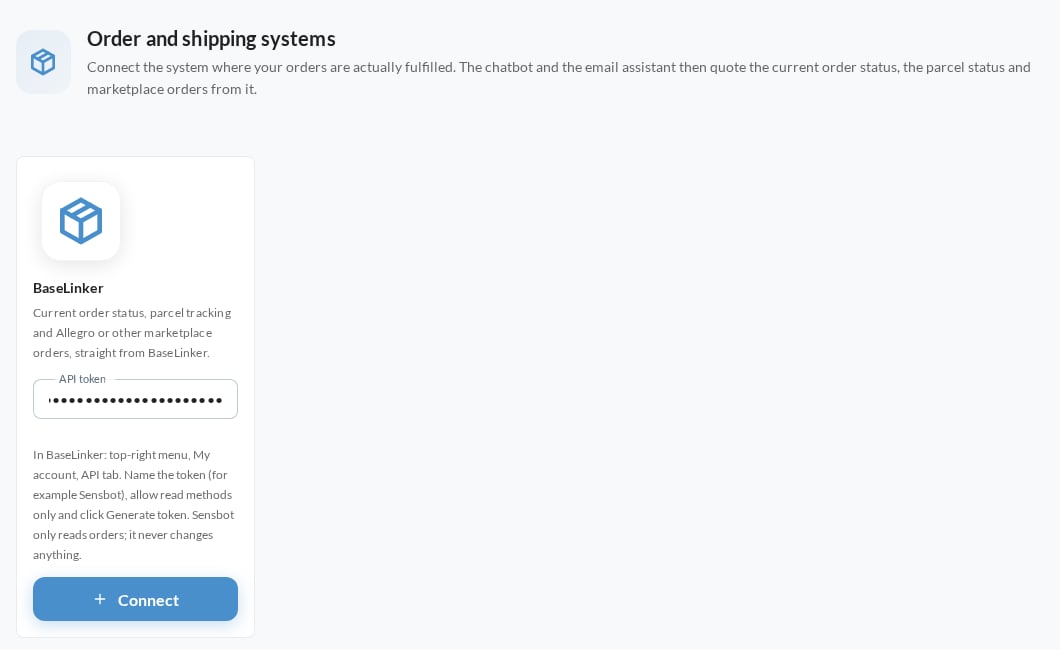
- Scroll to Order and shipping systems and find the BaseLinker card.
- Paste the token into API token and click Connect.
Step 3 · Check the card
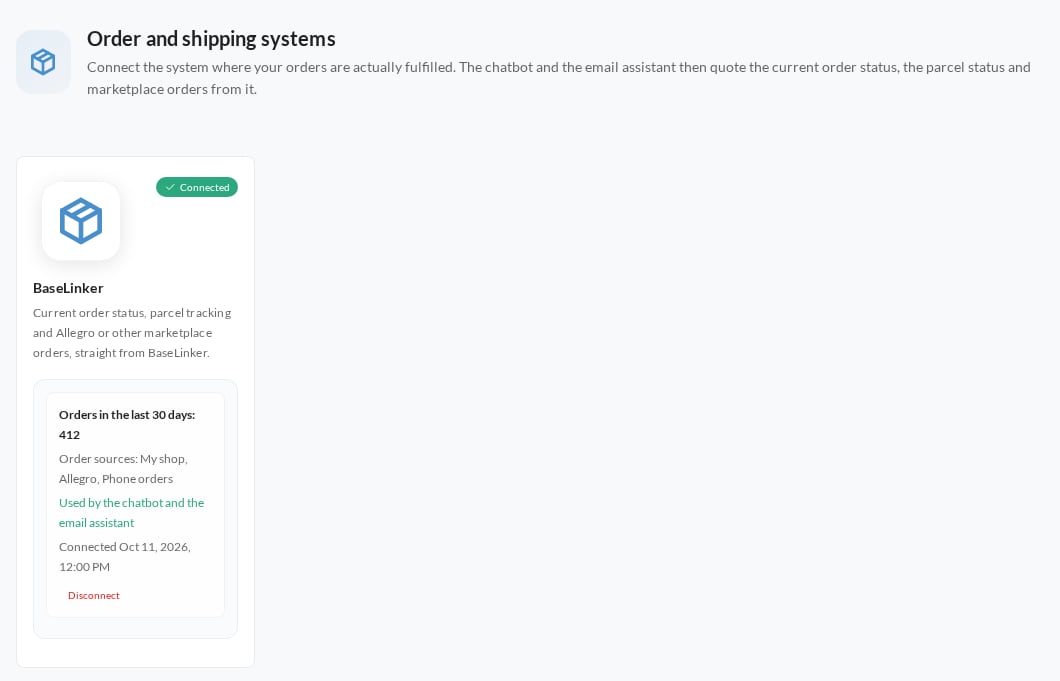
Once connected, the card shows:- Orders in the last 30 days: how many orders BaseLinker holds for that period.
- Order sources: where those orders came from, for example your shop, Allegro or phone orders.
What the customer gets
To get order details, the customer gives the order number plus the email address or phone number used on the order. In email, the sender’s address counts as the email.
Allegro often hides the buyer’s real email address behind its own, so for Allegro orders the phone number is the reliable way to find the order. Product questions are not answered from BaseLinker: they still come from your product feed or your shop platform.