

Outlook on the web – Usage
Once the add-in is installed, the Sensbot AI panel works the same way in Outlook on the web as it does in the classic desktop add-in. Select an email and the panel shows the same AI analysis, response tabs, and refinement tools.This also applies to the new Outlook for Windows — the new desktop app uses the same web add-in, so the steps below are identical whether you open Outlook in a browser or in the new Outlook for Windows app.
Opening the add-in
- Open or select an email.
- On the ribbon, select the Sensbot button (in the Add-ins group). The Sensbot AI pane opens on the right side of the window.

Keep the pane in sync as you move between emails
Select the pin icon (📌) at the top of the Sensbot pane. When pinned, the pane stays open and updates automatically as you move between emails, so you don’t have to reopen it for each message.Pinning is available on Microsoft 365 work accounts. It isn’t offered on personal Outlook.com accounts — that’s a Microsoft platform limitation, not a Sensbot setting. On a personal account the panel still works; you just reopen it per email.
Login to Sensbot
When you select the Sensbot icon in the ribbon, the Sensbot side pane opens with a login screen. Log in with the email and password you set when activating standalone access — the same login you use for the Sensbot platform and the desktop add-in. Tick Stay logged in so you don’t have to sign in each time.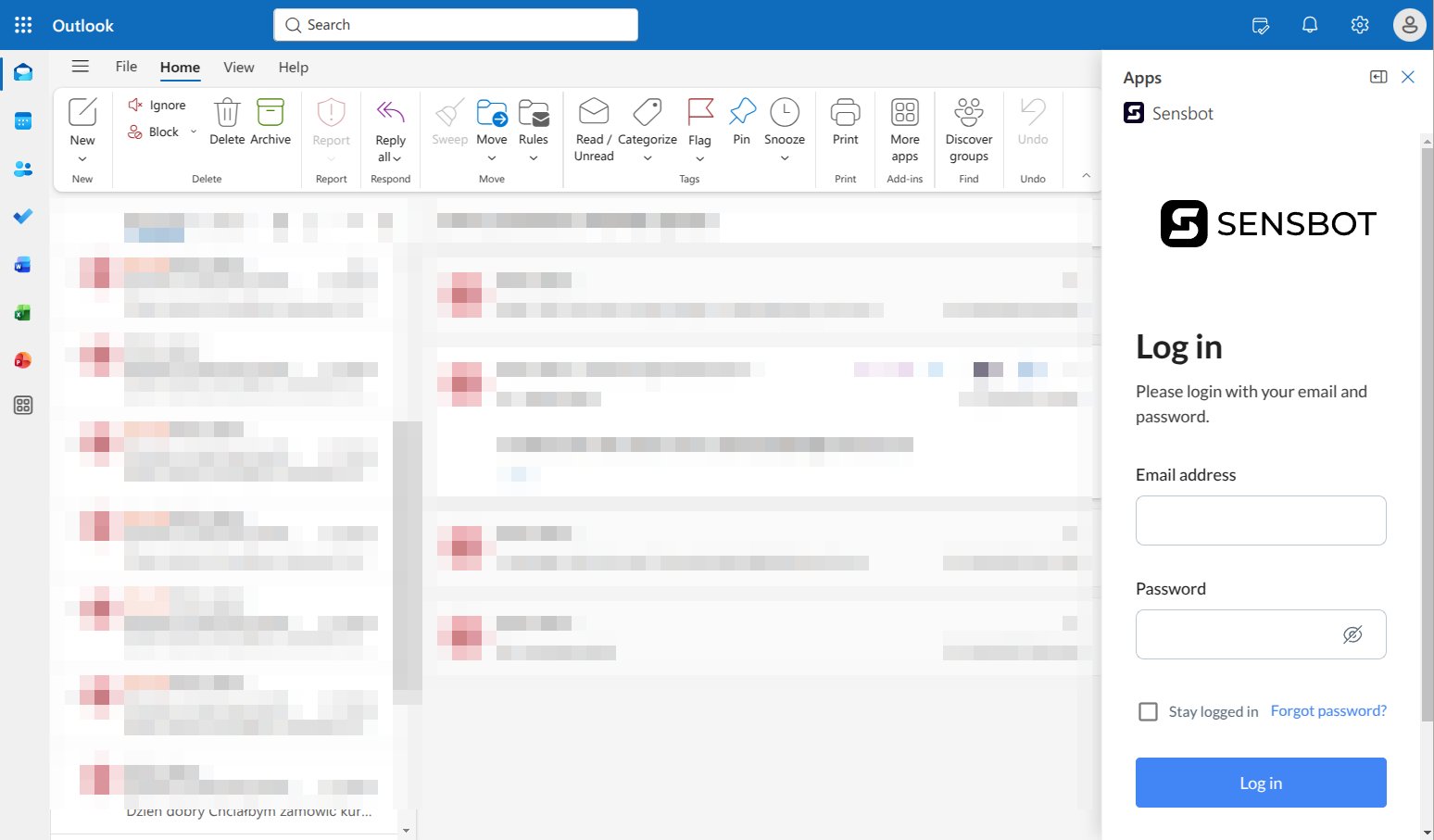
Don’t have standalone access yet?
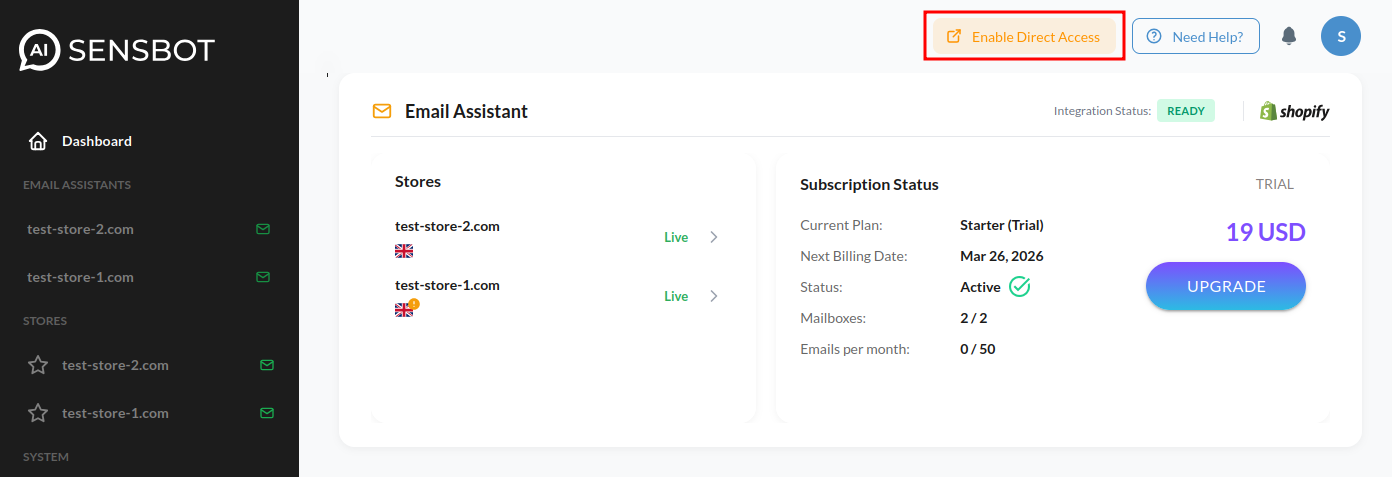
If you’ve been using Sensbot only through your e-commerce platform (Shopify, IdoSell, Shoper, etc.) and don’t have a direct login password yet, you need to enable standalone access first:- Open the Sensbot app inside your e-commerce platform.
- Go to Account → Profile.
- Click the orange button “Enable direct access”.
Generating a response
Once you’re logged in, the side pane follows whichever email you have selected. When you select a message, the pane shows the reply Sensbot already generated for it, or lets you generate a new one — along with the supporting context (analysis, order, and product details) for that email. When no email is selected, the panel shows a placeholder asking you to select an email. Select a message and the panel loads it automatically. If the email has not been processed yet, the panel shows an optional instructions field and a Generate button. Optional instructions — Type a short hint before generating to guide the response, for example:- Keep it short
- Translate to English
- Be more formal
Response ready – two-tab view
Once processing is complete, the panel shows two tabs: Response and Analysis.Response tab
The Response tab shows the AI-generated draft reply.Refining the response
Below the draft is a refine box. Type an instruction and choose one of:- Refine response — Keeps the same reasoning but adjusts tone, length, or language. The new version is added alongside the previous one, and you can navigate between them using the version arrows.
- New response — Generates a completely fresh draft, ignoring the previous one.
Analysis tab
The Analysis tab gives you insight into what Sensbot understood about the email. Summary badges — Coloured pills summarise the email at a glance:
Order / Product card — When the email references an order or product, a card appears with key details (order number, status, items, total, dates). Click the card to expand or collapse the full details.
Decision card — For emails that require a policy-based decision (e.g. a refund or return), a Decision card shows the recommended action, its risk level (Low / Medium / High), the reasoning behind it, and the store rules that guided the decision.
Actions taken — If Sensbot performed automated actions (e.g. tagged the email, created a task, updated an order), these appear as pills at the bottom of the tab.
No response required
If the AI determines the email does not need a reply (e.g. a newsletter or auto-confirmation), the panel shows a No Response Required message. You can still use the refine box to override this and request a draft manually.Using the draft in Outlook
Click Use this response in the Response tab. Sensbot inserts the formatted draft directly into Outlook’s reply window — ready to review, edit, and send. Alternatively, click Copy to copy the plain text and paste it anywhere you need.Which mailbox am I answering for?
At the bottom of the panel you’ll see which mailbox the current assistant answers for (e.g.info@yourstore.com). If you manage several stores, this mailbox indicator is how you confirm the right store’s assistant is responding — its language, signature, and store data.