Outlook Add-in – Usage
The usage experience is the same for both the classic desktop add-in and Outlook on the web. Once you select an email, the Sensbot AI side panel shows identical content regardless of which Outlook client you use.Opening the add-in
Click Sensbot AI in the Outlook ribbon (Home tab or Sensbot tab). A Sensbot AI task pane opens on the right side of the Outlook window.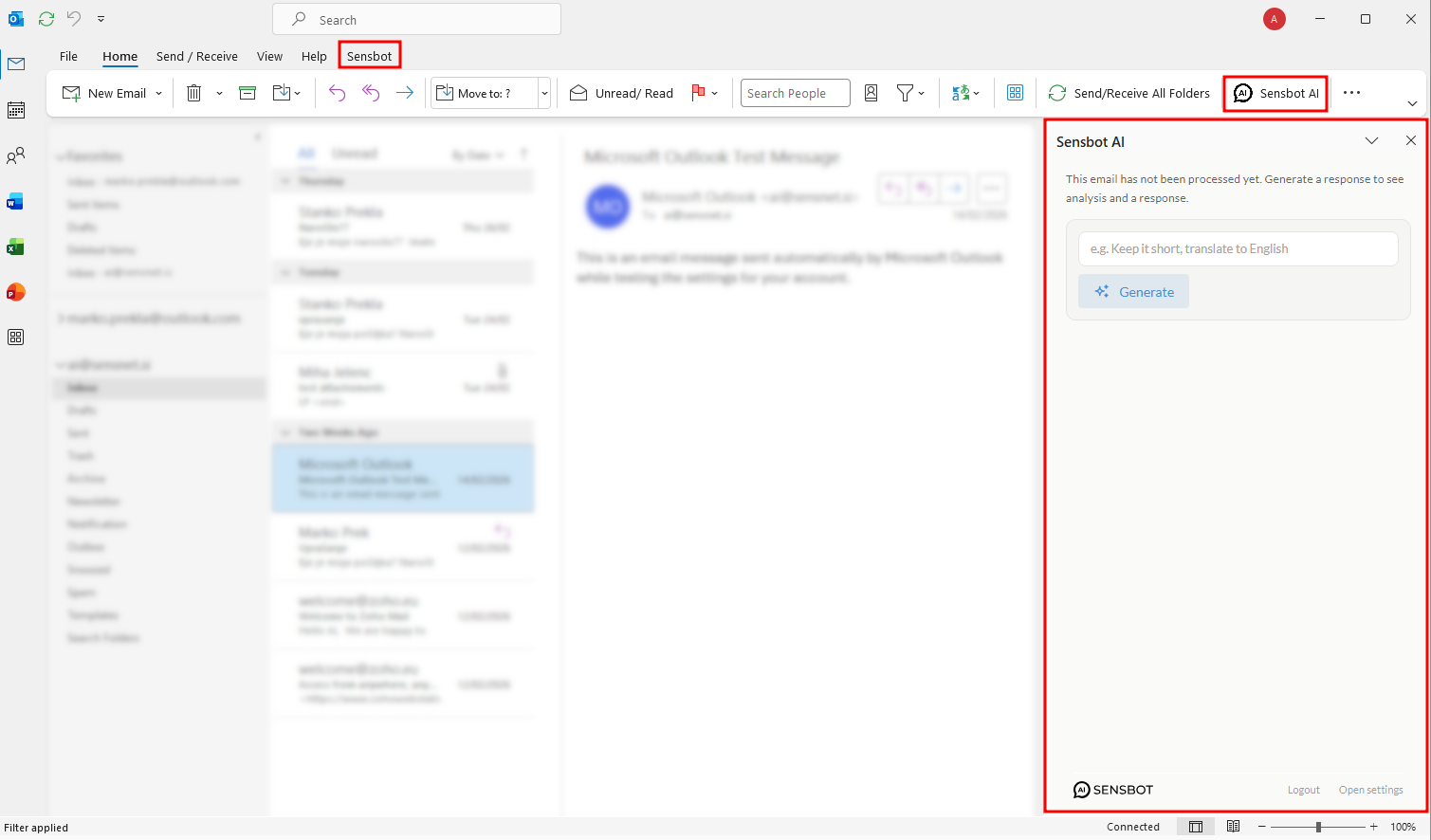
Selecting an email
When no email is selected, the panel shows a placeholder:No email selectedClick any email in your inbox or folder list to activate the panel for that message. The panel immediately starts loading. In Mail view (inbox or folder list): Select an email in the list. The panel loads that email automatically. Changing your selection updates the panel to the newly selected email. In an open email window: Open an email in its own window and click Sensbot AI in the ribbon. The panel shows that specific email.
Select an email to generate a response.
Generating a response
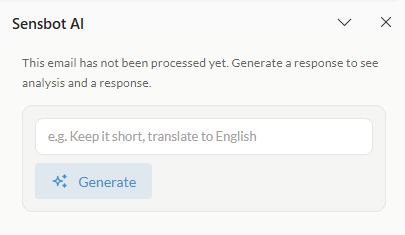
If the email has not been processed yet, the panel shows:This email has not been processed yet. Generate a response to see analysis and a reply draft.Below that you will find an optional instructions field and a Generate button.
- Keep it short
- Translate to English
- Be more formal
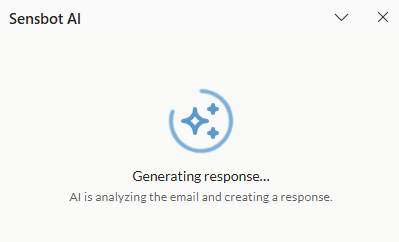
Response ready – two-tab view
Once processing is complete, the panel shows two tabs: Response and Analysis.Response tab
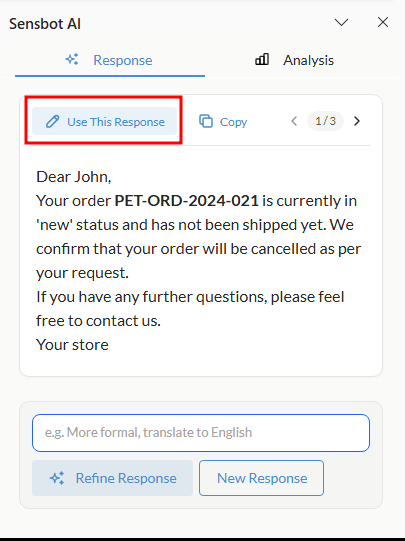
The Response tab shows the AI-generated draft reply.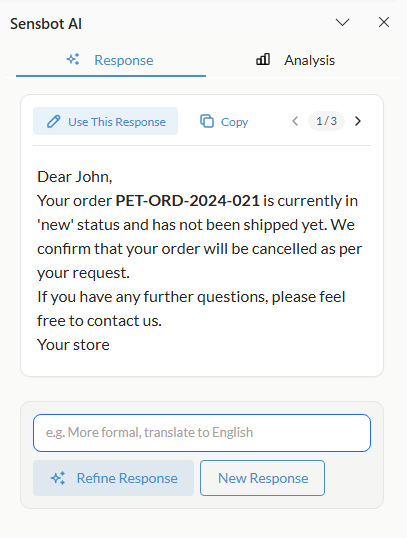
The draft is displayed as formatted HTML (bold text, paragraphs, signature) matching a typical reply email.
Refining the response
Below the draft is a refine box. Type an instruction and choose one of:- Refine response — Keeps the same reasoning but adjusts tone, length, or language. The new version is added alongside the previous one and you can navigate between them using the version arrows.
- New response — Generates a completely fresh draft, ignoring the previous one.
Analysis tab
The Analysis tab gives you insight into what Sensbot understood about the email.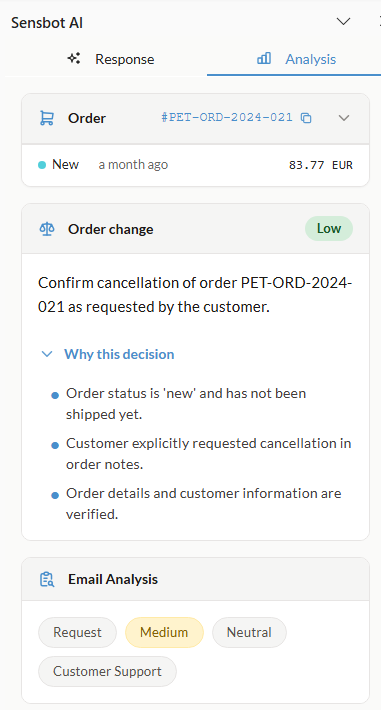
Order / Product card — When the email references an order or product, a card appears with key details (order number, status, items, total, dates). Click the card to expand or collapse the full details.
Decision card — For emails that require a policy-based decision (e.g. a refund or return), a Decision card shows the recommended action, its risk level (Low / Medium / High), the reasoning behind it, and the store rules that guided the decision.
Actions taken — If Sensbot performed automated actions (e.g. tagged the email, created a task, updated an order), these appear as blue pills at the bottom of the tab.
No response required
If the AI determines the email does not need a reply (e.g. a newsletter or auto-confirmation), the panel shows:No Response RequiredYou can still use the refine box to override this and request a draft manually.
This email does not require a reply. No response was generated.
Using the draft in Outlook
Click Use this response in the Response tab. Sensbot inserts the formatted HTML draft directly into Outlook’s reply window — ready to review, edit, and send.