

Outlook Add-in – Installation
There are two versions of the Sensbot Outlook Add-in. This page covers the classic desktop version, for the older classic Outlook application on Windows.Using Outlook on the web or the new Outlook for Windows (the new desktop app)? Don’t use this installer — follow Web installation instead. Both use the same web add-in.Not sure which app you have? Check the icon — Outlook (classic) on the left (this installer), the new Outlook on the right (use the web procedure):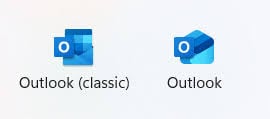
Classic Outlook (desktop)
The desktop add-in runs inside the Microsoft Outlook application on Windows. It works with Microsoft 365 accounts as well as any other email provider you have set up in Outlook (Gmail, IMAP/SMTP, and others).Requirements
- Windows with Microsoft Outlook (desktop) installed
- .NET Framework 4.7.2 or higher (Windows will prompt you to install it if missing)
- Microsoft Edge WebView2 (pre-installed on Windows 10 and 11; download from Microsoft if prompted)
Installation steps
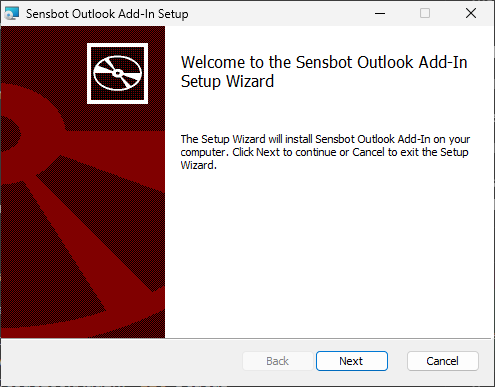
1. Download the installer Download the installer from: https://sensbot.ai/downloads/SensbotOutlookAddIn.msi 2. Run the installer Double-click the downloadedSensbotOutlookAddIn.msi file to launch the setup wizard.
Finding and opening the add-in
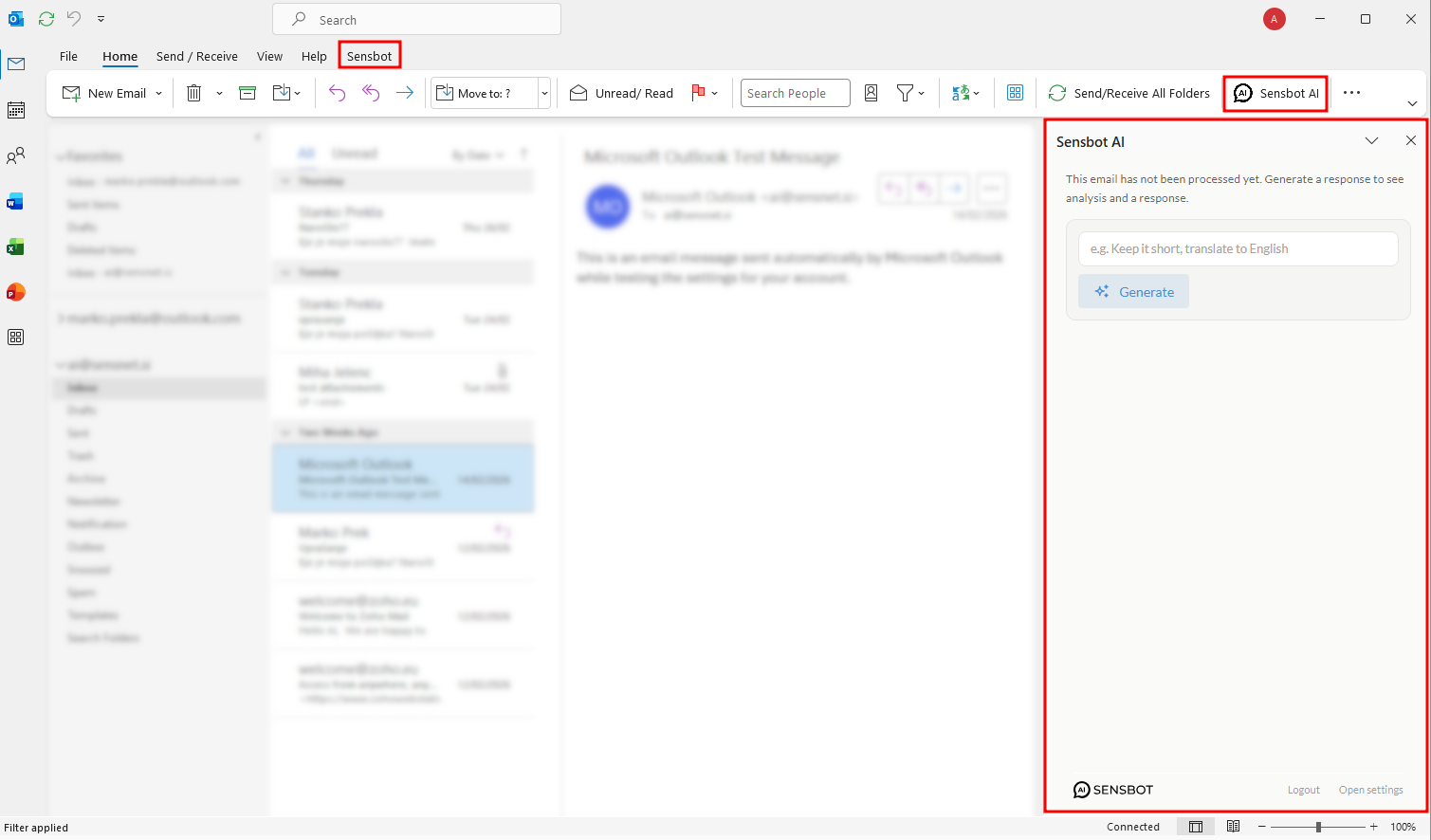
After restarting Outlook, the Sensbot AI button appears in two places in the ribbon:- Home tab → Sensbot AI group → Sensbot AI button
- Sensbot tab → AI group → Sensbot AI button
Login to Sensbot
When you open the add-in for the first time, you’ll need to log in to your Sensbot account.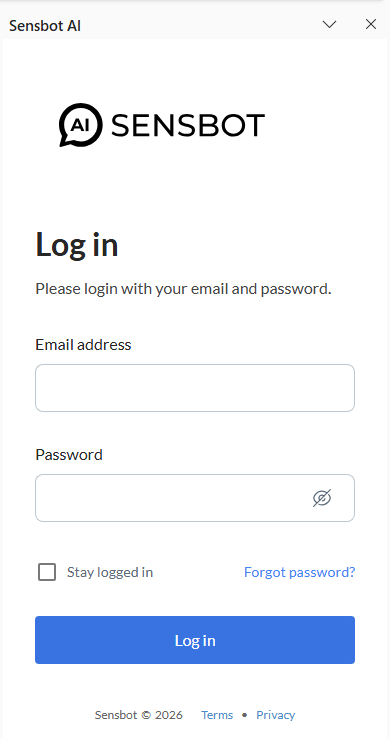
Don’t have standalone access yet?
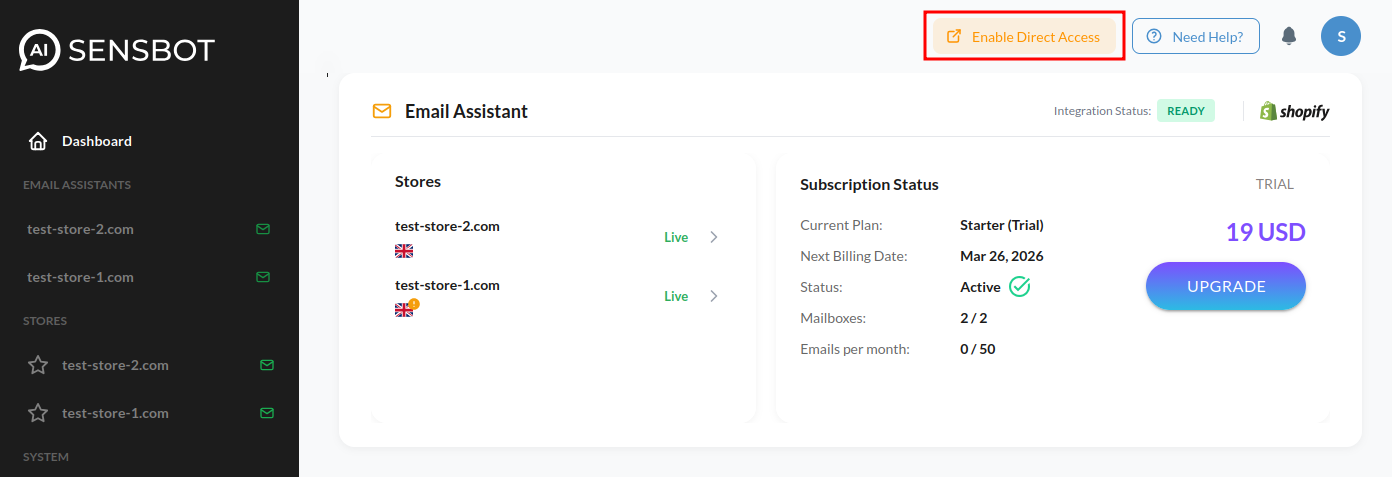
If you’ve been using Sensbot only through your e-commerce platform (Shopify, IdoSell, Shoper, etc.) and don’t have a direct login password yet, you need to enable standalone access first:- Open the Sensbot app inside your e-commerce platform
- Go to Account → Profile
- Click the orange button “Enable direct access”
Uninstalling
Go to Settings → Apps → Installed apps (or Add or remove programs), find Sensbot Outlook Add-In, and select Uninstall. Restart Outlook after the process completes.Outlook on the web
Using Outlook on the web instead of the desktop app? The web add-in installs from a manifest link — no separate installer required. See Web installation for the administrator (Microsoft 365) and personal (Outlook.com) steps.