Gmail Add-on – Usage
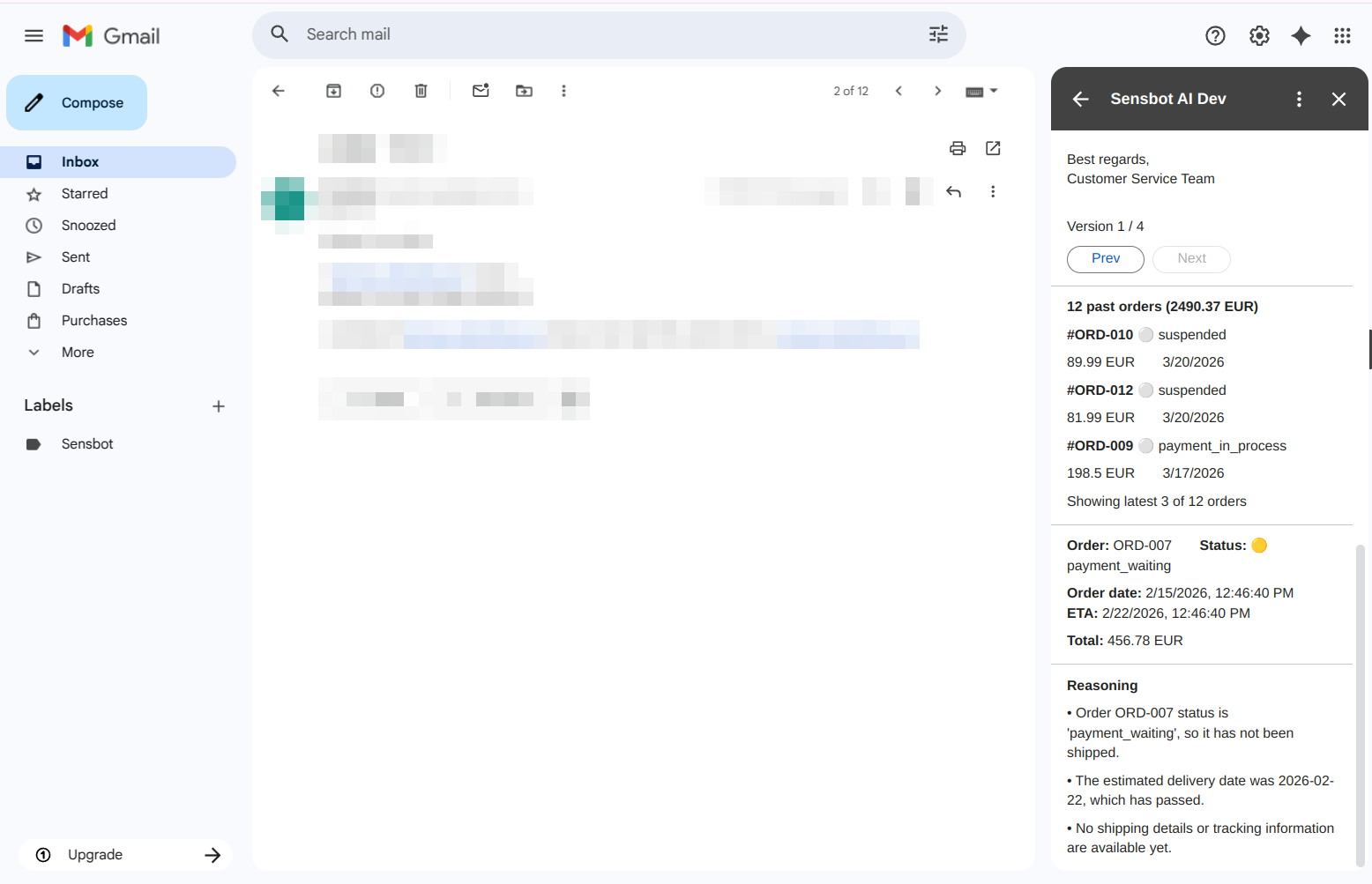
Once you open an email, the Sensbot AI side panel shows the same kind of content as in Outlook: draft replies, order and returns context, past orders, and reasoning. In Gmail everything appears in a single pane (there are no separate Response and Analysis tabs).Opening the add-on
Click the Sensbot icon in the right tools pane. The Sensbot AI side panel opens on the right side of the Gmail window.
Selecting an email
When no email is selected, the panel shows a placeholder:No email selectedClick any email in your inbox or folder list to activate the panel for that message. The panel immediately starts loading. In Mail view (inbox or folder list): Select an email in the list. The panel loads that email automatically. Changing your selection updates the panel to the newly selected email.
Select an email to generate a response.
Generating a response
If the email has not been processed yet, the panel shows that no response has been generated yet and invites you to generate one. Optional instructions — You can type a short hint before generating to guide the response, for example:- Keep it short
- Translate to English
- Be more formal
Response ready – draft and context in one pane
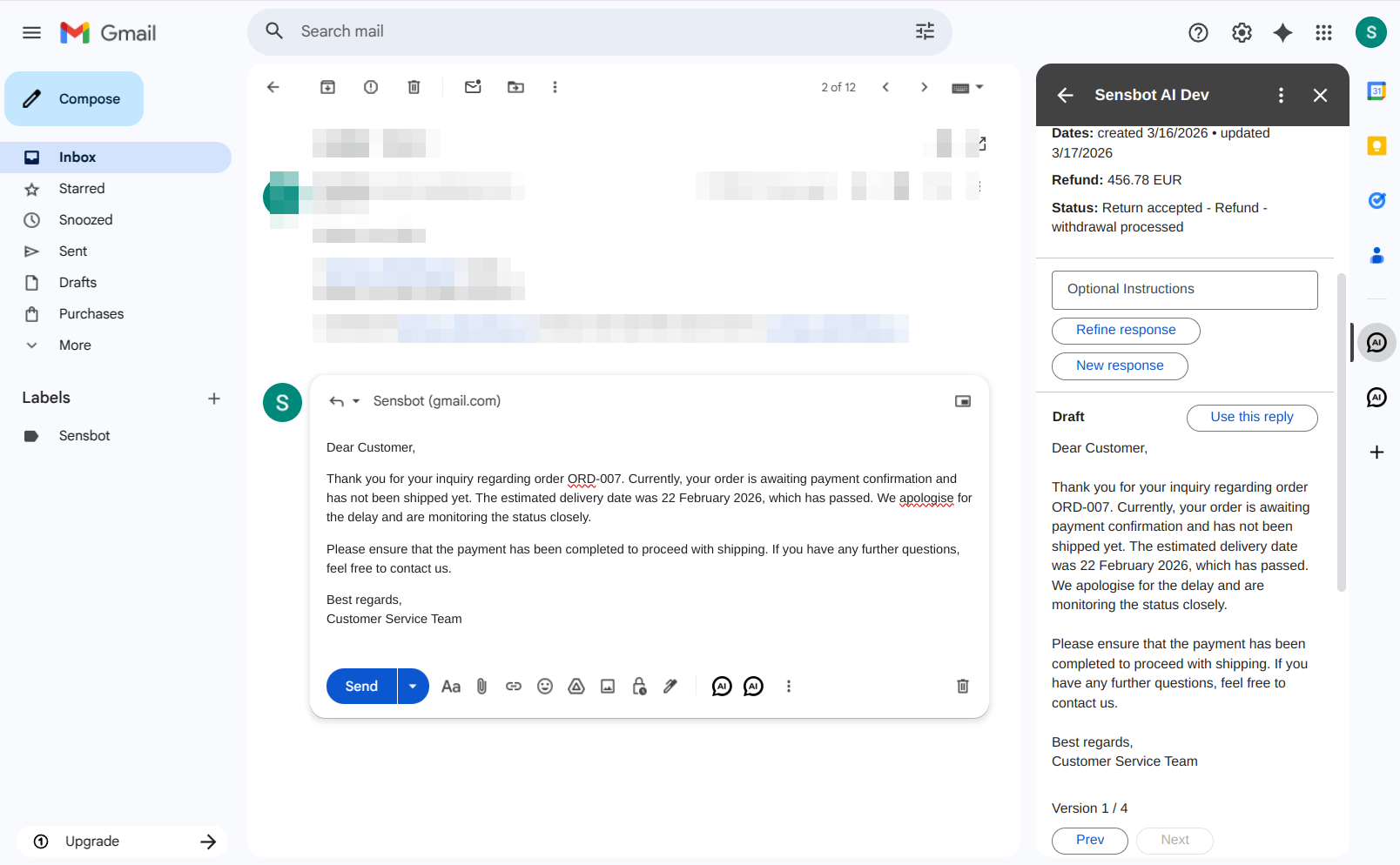
When processing is complete, the panel shows the AI-generated draft and supporting context in a single view (unlike Outlook’s two-tab layout). Draft and actions:
The draft is displayed with formatting (paragraphs, signature) matching a typical reply email.
Refining the response — Below the draft you can use the Optional instructions field and then:
- Refine response — Keeps the same reasoning but adjusts tone, length, or language. The new version is added alongside the previous one and you can navigate between them using the version arrows.
- New response — Generates a completely fresh draft, ignoring the previous one.
No response required
If the AI determines the email does not need a reply (e.g. a newsletter or auto-confirmation), the panel may indicate that no response was generated. You can still use the optional instructions and New response to request a draft manually.Using the draft in Gmail
Click Use this reply in the Sensbot pane. A Gmail compose window opens with the generated draft inserted — ready to review, edit, and send.