> ## Documentation Index
> Fetch the complete documentation index at: https://docs.sensbot.ai/llms.txt
> Use this file to discover all available pages before exploring further.
# Thulium Integration
> Connect Sensbot Email Assistant to your Thulium helpdesk so drafted replies appear on your tickets
If your team answers customers in Thulium rather than in a mailbox, Sensbot works there instead.
The Email Assistant reads each new customer ticket in the queues you choose, looks up the order and the products it is about in your shop, and leaves the reply ready as a comment on that ticket. Your agent opens the ticket, copies the reply, changes what they want, and sends it from Thulium as usual.
It can also take care of the steps around the reply: tagging the ticket, moving it to the right queue, putting a note on the order before it is packed. See [Actions on the ticket](#beyond-the-reply-actions-on-the-ticket).
Sensbot **never sends** anything to your customer. Every reply is a suggestion sitting on the ticket until one of your agents sends it.
***
## What you need
| Requirement | Why |
| ------------------------------------------------------------ | ---------------------------------------------------------- |
| A Thulium account, with access to **Administration** | You create the API user there |
| Your shop connected to Sensbot with the Email Assistant | Drafts are built from your real orders, products and pages |
| To know which Thulium **ticket queues** carry customer email | Only those queues get drafts |
Setting the connection up is done by us, not from a catalogue: you create one API user, send us the details, and we do the rest. Plan on a few days between handing over the details and seeing the first drafts, because the assistant is trained on your own ticket history first.
***
## Step 1 · Install the Email Assistant on your shop
Sensbot answers from your shop's data, so the shop is connected first. Install the Email Assistant from your platform:
Install from your IdoSell admin panel. Billing goes onto your normal IdoSell invoice.
Install from the Shopify App Store.
Install from **Dodatki i integracje → Aplikacje** in your Shoper panel.
Install the plugin from WordPress.org.
Running on a platform that is not in this list? Write to [support@sensbot.ai](mailto:support@sensbot.ai) and tell us which one, and we will tell you what we can connect.
Installing starts your free trial. When you connect Thulium you can skip the mailbox step in the dashboard: Thulium takes the place of the mailbox.
***
## Step 2 · Create an API user in Thulium
This is the only thing Sensbot needs from your Thulium panel, and it takes about two minutes.
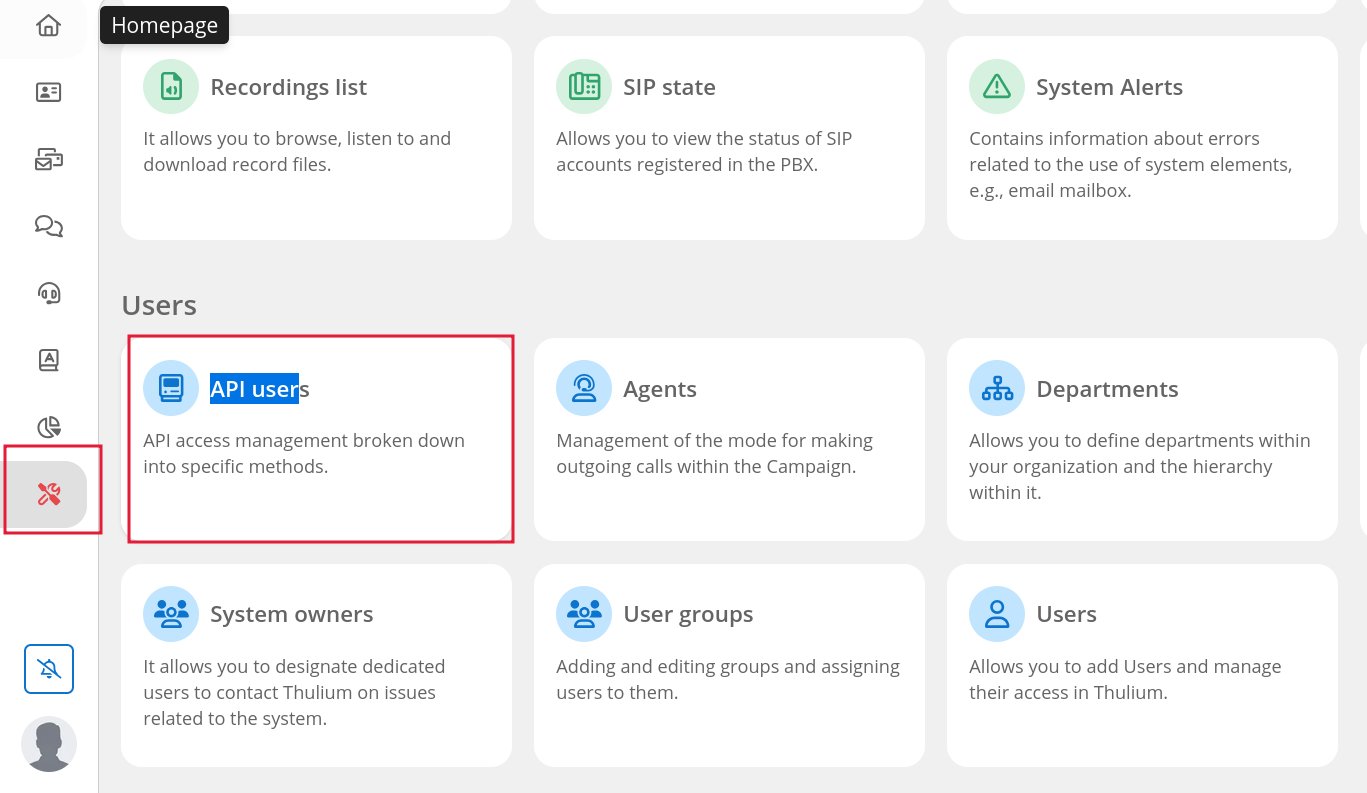
1. In Thulium, open **Administration** (the tools icon at the bottom of the left sidebar).
2. Under **Users**, open **API users**.
3. Click **Add**.
4. Name it `sensbot`.
5. Set a long random password. Keep a copy, Thulium will not show it again.
6. Give it **all permissions** (`*`).
7. Save.
 Thulium grants API permissions method by method. The assistant reads tickets and their message history, looks up your queues and agents, and writes the suggested reply back as a comment. Ticking everything is the quickest setup that reliably works. These credentials only ever go to Sensbot.
An API user is not an agent. It does not appear in your team list, it cannot log in to the panel, and it does not answer customers.
**You do not need to create an agent for Sensbot either.** A comment in Thulium has to be signed by somebody, and by default we sign with Thulium's own built-in system account, the one that already writes lines like "Changed status from \[New] to \[In progress]" on your tickets. Nothing to set up, and no seat in your team list.
If you would rather the drafts appeared under a name of your own, add a user in **Administration → Users → Users**, call it something like `Sensbot AI`, **leave all of its agent assignments empty**, and tell us its login. The empty assignments matter: a user assigned to a chat or ticket queue starts pulling live conversations to itself the moment it reports as available, taking them off your agents.
***
## Step 3 · Send us the details
Write to [support@sensbot.ai](mailto:support@sensbot.ai) with:
* The address of your Thulium panel, in the form `https://yourcompany.thulium.com`
* The API user login and password from step 2
* Which ticket queues carry customer email, if you already know
We can read the queue list ourselves, so the last one is only to save a round of questions. We check with you before mapping anything, because queue names are rarely the whole story: on a live panel we routinely find queues that hold only missed calls, marketplace notifications or spam.
Would rather not put a password in an email? Say so in the message and we will agree another way to receive it.
***
## Step 4 · What happens next, on our side
1. We verify the credentials against your panel, and read nothing until they work.
2. We train the assistant on your existing ticket history: how your team writes, what you answer to the questions that keep coming back, your policies on delivery, returns and complaints.
3. We run it **dry**, producing drafts that go nowhere near your panel, and go through them.
4. When it is good, we ask you to test it and to confirm.
5. Only then are the queues mapped and drafts start appearing on real tickets.
Nothing reaches your agents until you have seen it and said yes.
***
## Step 5 · What your agents see
On a new customer ticket in a mapped queue, a comment appears on the ticket:
* **The reply comes first**, from the very first character. Selecting from the top of the comment gives a clean copy with nothing of ours in it.
* Below a separator line, a short note that this is a Sensbot suggestion to check before sending.
* Optionally, below that, a **context block** marked as not to be copied: the order it found and its status, any complaint or return it matched, and any warning we already spotted. It is there so an agent can tell whether the reply is right without opening your shop's admin in another tab.
Your agent copies the reply into the ticket's reply box, edits it, and sends. Thulium remains the tool they work in. The context block can be switched off per assistant if you would rather not see it, just tell us.
***
## Beyond the reply · Actions on the ticket
A draft saves your agent the typing. Most tickets also need something **done**: the ticket tagged so it is picked up in the right order, a note put on the order so whoever packs it sees the request, a return registered.
The assistant can carry those out, in your helpdesk and in your shop, off the same understanding of the message it used to write the reply.
### How an action is decided
Actions are not a free choice the assistant makes. Each one is wired to a **condition you agree with us**, for example: the case is an order change or a delivery problem, an order number was actually quoted in the message, and the order has not shipped yet. If the condition does not hold, nothing happens.
Each action runs **once per conversation**, and everything is recorded: what was proposed, what ran, what it changed, and what the value was before, so it can be put back.
### Automatic, or only after you confirm
Internal, invisible to the customer, undoable. Tagging, moving a ticket, a note in your own admin. These happen as the message is processed, so the ticket is already in the right state when your agent opens it.
Anything a customer would see, or that changes an order or a shipment. Proposed, never done on its own.
When an action needs confirming, the comment on the ticket carries a **link**. Opening it shows a preview of exactly what would change, field by field, from what to what, before anything is written. You adjust the details if you want, then confirm, or close it and nothing happens. Opening the link never performs the action.
Nothing that writes to your customer is ever automatic, and nothing touching money is either. Refunds, and any message leaving your helpdesk, stay your agents' decision.
### What can be wired up
| In your helpdesk | |
| ------------------------------- | ------------------------------------------------------------------------------------------------------------------------------------------------------------------------------------------------------------- |
| Tag the ticket | so your team and your own filters can pick it up |
| Move it to another queue | when the message clearly belongs to a different team |
| Set status or sub-status | to take a handled ticket out of the open pile |
| Assign it to an agent or a team | |
| Raise its priority | Thulium sets priority from its own automation rules rather than from an integration, so the pattern is: we write the tag, one rule in your panel raises the priority off it. Set up once, works from then on. |
| In your shop | |
| ----------------------------------- | ------------------------------------------------------------------------- |
| Put a note on the order | so whoever picks and packs it sees the customer's request before dispatch |
| Change the delivery address | before dispatch, after you confirm |
| Change or remove a line on an order | before dispatch, after you confirm |
| Cancel an order | before dispatch, after you confirm |
| With your carrier | |
| ------------------------------------------------ | ------------------------------------------------------------------------------------ |
| Register a return | and put the reference back on the ticket, so the customer's next mail already has it |
| Open a claim on a parcel that has stopped moving | after you confirm |
Actions are switched on **one at a time, per shop**, once we have agreed with you what should trigger each one. Start with one: tell us the step your team repeats on every one of these tickets, and we will wire that one first.
***
## Good to know
* **Only customer-initiated tickets get drafts.** A thread your own team started is skipped.
* **This page covers the email and ticket channel.** If you also want your Thulium chat widget answered, tell us — that is a separate conversation about how it should hand over to your team.
* **Only mapped queues are touched.** Everything else in your panel carries on exactly as before.
* **If you have just connected a mailbox to Thulium**, its whole existing inbox is imported as tickets, which can take a while. We wait for that to finish before mapping queues, so your agents do not get a wave of drafts on years-old mail.
* **The connection is not charged separately.** You pay for the Email Assistant plan on your shop platform, the same as anyone connecting a mailbox. See [sensbot.ai/pricing](https://sensbot.ai/pricing/).
* **To stop it**, write to us and we switch the connection off, or delete the `sensbot` API user in Thulium yourself. Either one stops the drafts immediately.
***
## Troubleshooting
Work through it in this order:
1. Is the ticket in a queue we mapped? Only mapped queues are read.
2. Did the customer start the thread? Threads your team started are skipped by design.
3. Did the ticket arrive by email? Missed-call and internally created tickets have nothing for the assistant to answer.
4. Has the password on the `sensbot` API user been changed, or the user removed?
A draft can also be held back on purpose. Every draft is checked before it is delivered, and one that claims something the assistant cannot stand behind is suppressed rather than shown. Those cases are visible in the Sensbot dashboard, so ask us and we will tell you which happened.
The connection stops working the moment the password changes, and no drafts appear. Send us the new one and we will update it.
It has been given an agent assignment somewhere. Open **Administration → Users → Users**, edit that user, and clear every phone, chat and ticket queue assignment. Signing a comment needs none of them.
Shop data is synced on a schedule, not instantly, so a change made in your shop takes some time to reach the assistant. If a draft was wrong about something that had not changed, send us the ticket number: that is a tuning problem and we fix it on our side.
The assistant learns from the replies your team has already sent in Thulium. You can steer it directly in the Sensbot dashboard through [Writing style](/customization/email-assistant/writing-style) and [Custom instructions](/customization/email-assistant/custom-instructions), or tell us what to change and we will do it.
It is optional per assistant. Write to us and we turn it off. The reply itself is unchanged either way.
Tell us what it is and what should trigger it. The list above is what merchants have asked for so far, not a boundary: anything your helpdesk, your shop or your carrier exposes can be wired the same way, with the same rule that customer-visible changes wait for a person.
***
## 🎉 Done
Your agents open Thulium to a reply already written, grounded in the real order. Every send stays theirs.
Need help? Contact us at [support@sensbot.ai](mailto:support@sensbot.ai).
Thulium grants API permissions method by method. The assistant reads tickets and their message history, looks up your queues and agents, and writes the suggested reply back as a comment. Ticking everything is the quickest setup that reliably works. These credentials only ever go to Sensbot.
An API user is not an agent. It does not appear in your team list, it cannot log in to the panel, and it does not answer customers.
**You do not need to create an agent for Sensbot either.** A comment in Thulium has to be signed by somebody, and by default we sign with Thulium's own built-in system account, the one that already writes lines like "Changed status from \[New] to \[In progress]" on your tickets. Nothing to set up, and no seat in your team list.
If you would rather the drafts appeared under a name of your own, add a user in **Administration → Users → Users**, call it something like `Sensbot AI`, **leave all of its agent assignments empty**, and tell us its login. The empty assignments matter: a user assigned to a chat or ticket queue starts pulling live conversations to itself the moment it reports as available, taking them off your agents.
***
## Step 3 · Send us the details
Write to [support@sensbot.ai](mailto:support@sensbot.ai) with:
* The address of your Thulium panel, in the form `https://yourcompany.thulium.com`
* The API user login and password from step 2
* Which ticket queues carry customer email, if you already know
We can read the queue list ourselves, so the last one is only to save a round of questions. We check with you before mapping anything, because queue names are rarely the whole story: on a live panel we routinely find queues that hold only missed calls, marketplace notifications or spam.
Would rather not put a password in an email? Say so in the message and we will agree another way to receive it.
***
## Step 4 · What happens next, on our side
1. We verify the credentials against your panel, and read nothing until they work.
2. We train the assistant on your existing ticket history: how your team writes, what you answer to the questions that keep coming back, your policies on delivery, returns and complaints.
3. We run it **dry**, producing drafts that go nowhere near your panel, and go through them.
4. When it is good, we ask you to test it and to confirm.
5. Only then are the queues mapped and drafts start appearing on real tickets.
Nothing reaches your agents until you have seen it and said yes.
***
## Step 5 · What your agents see
On a new customer ticket in a mapped queue, a comment appears on the ticket:
* **The reply comes first**, from the very first character. Selecting from the top of the comment gives a clean copy with nothing of ours in it.
* Below a separator line, a short note that this is a Sensbot suggestion to check before sending.
* Optionally, below that, a **context block** marked as not to be copied: the order it found and its status, any complaint or return it matched, and any warning we already spotted. It is there so an agent can tell whether the reply is right without opening your shop's admin in another tab.
Your agent copies the reply into the ticket's reply box, edits it, and sends. Thulium remains the tool they work in. The context block can be switched off per assistant if you would rather not see it, just tell us.
***
## Beyond the reply · Actions on the ticket
A draft saves your agent the typing. Most tickets also need something **done**: the ticket tagged so it is picked up in the right order, a note put on the order so whoever packs it sees the request, a return registered.
The assistant can carry those out, in your helpdesk and in your shop, off the same understanding of the message it used to write the reply.
### How an action is decided
Actions are not a free choice the assistant makes. Each one is wired to a **condition you agree with us**, for example: the case is an order change or a delivery problem, an order number was actually quoted in the message, and the order has not shipped yet. If the condition does not hold, nothing happens.
Each action runs **once per conversation**, and everything is recorded: what was proposed, what ran, what it changed, and what the value was before, so it can be put back.
### Automatic, or only after you confirm
Internal, invisible to the customer, undoable. Tagging, moving a ticket, a note in your own admin. These happen as the message is processed, so the ticket is already in the right state when your agent opens it.
Anything a customer would see, or that changes an order or a shipment. Proposed, never done on its own.
When an action needs confirming, the comment on the ticket carries a **link**. Opening it shows a preview of exactly what would change, field by field, from what to what, before anything is written. You adjust the details if you want, then confirm, or close it and nothing happens. Opening the link never performs the action.
Nothing that writes to your customer is ever automatic, and nothing touching money is either. Refunds, and any message leaving your helpdesk, stay your agents' decision.
### What can be wired up
| In your helpdesk | |
| ------------------------------- | ------------------------------------------------------------------------------------------------------------------------------------------------------------------------------------------------------------- |
| Tag the ticket | so your team and your own filters can pick it up |
| Move it to another queue | when the message clearly belongs to a different team |
| Set status or sub-status | to take a handled ticket out of the open pile |
| Assign it to an agent or a team | |
| Raise its priority | Thulium sets priority from its own automation rules rather than from an integration, so the pattern is: we write the tag, one rule in your panel raises the priority off it. Set up once, works from then on. |
| In your shop | |
| ----------------------------------- | ------------------------------------------------------------------------- |
| Put a note on the order | so whoever picks and packs it sees the customer's request before dispatch |
| Change the delivery address | before dispatch, after you confirm |
| Change or remove a line on an order | before dispatch, after you confirm |
| Cancel an order | before dispatch, after you confirm |
| With your carrier | |
| ------------------------------------------------ | ------------------------------------------------------------------------------------ |
| Register a return | and put the reference back on the ticket, so the customer's next mail already has it |
| Open a claim on a parcel that has stopped moving | after you confirm |
Actions are switched on **one at a time, per shop**, once we have agreed with you what should trigger each one. Start with one: tell us the step your team repeats on every one of these tickets, and we will wire that one first.
***
## Good to know
* **Only customer-initiated tickets get drafts.** A thread your own team started is skipped.
* **This page covers the email and ticket channel.** If you also want your Thulium chat widget answered, tell us — that is a separate conversation about how it should hand over to your team.
* **Only mapped queues are touched.** Everything else in your panel carries on exactly as before.
* **If you have just connected a mailbox to Thulium**, its whole existing inbox is imported as tickets, which can take a while. We wait for that to finish before mapping queues, so your agents do not get a wave of drafts on years-old mail.
* **The connection is not charged separately.** You pay for the Email Assistant plan on your shop platform, the same as anyone connecting a mailbox. See [sensbot.ai/pricing](https://sensbot.ai/pricing/).
* **To stop it**, write to us and we switch the connection off, or delete the `sensbot` API user in Thulium yourself. Either one stops the drafts immediately.
***
## Troubleshooting
Work through it in this order:
1. Is the ticket in a queue we mapped? Only mapped queues are read.
2. Did the customer start the thread? Threads your team started are skipped by design.
3. Did the ticket arrive by email? Missed-call and internally created tickets have nothing for the assistant to answer.
4. Has the password on the `sensbot` API user been changed, or the user removed?
A draft can also be held back on purpose. Every draft is checked before it is delivered, and one that claims something the assistant cannot stand behind is suppressed rather than shown. Those cases are visible in the Sensbot dashboard, so ask us and we will tell you which happened.
The connection stops working the moment the password changes, and no drafts appear. Send us the new one and we will update it.
It has been given an agent assignment somewhere. Open **Administration → Users → Users**, edit that user, and clear every phone, chat and ticket queue assignment. Signing a comment needs none of them.
Shop data is synced on a schedule, not instantly, so a change made in your shop takes some time to reach the assistant. If a draft was wrong about something that had not changed, send us the ticket number: that is a tuning problem and we fix it on our side.
The assistant learns from the replies your team has already sent in Thulium. You can steer it directly in the Sensbot dashboard through [Writing style](/customization/email-assistant/writing-style) and [Custom instructions](/customization/email-assistant/custom-instructions), or tell us what to change and we will do it.
It is optional per assistant. Write to us and we turn it off. The reply itself is unchanged either way.
Tell us what it is and what should trigger it. The list above is what merchants have asked for so far, not a boundary: anything your helpdesk, your shop or your carrier exposes can be wired the same way, with the same rule that customer-visible changes wait for a person.
***
## 🎉 Done
Your agents open Thulium to a reply already written, grounded in the real order. Every send stays theirs.
Need help? Contact us at [support@sensbot.ai](mailto:support@sensbot.ai).