> ## Documentation Index
> Fetch the complete documentation index at: https://docs.sensbot.ai/llms.txt
> Use this file to discover all available pages before exploring further.
# BaseLinker
> Connect BaseLinker so the chatbot and the Email Assistant answer order and parcel questions from it, including Allegro and other marketplace orders
If your orders go through [BaseLinker](https://base.com) (now trading as Base), that is usually where the most current answer to "where is my order" lives: the status your team set, the parcel and its tracking number, and orders from Allegro and other marketplaces that your shop platform never sees.
Once BaseLinker is connected, the chatbot and the Email Assistant check it first when a customer asks about an order, and fall back to the order data from your shop platform when BaseLinker has nothing.
Sensbot only **reads** from BaseLinker. With a read-only token it cannot change an order, a status or a parcel.
***
## Before you start
| Requirement | Why |
| - | - |
| A Sensbot account with the chatbot or the Email Assistant | BaseLinker adds order answers to them |
| Access to your BaseLinker account | You create the token there |
| About five minutes | |
Is your shop on a platform without a Sensbot app (for example PrestaShop or a shop built in-house)? Write to [support@sensbot.ai](mailto:support@sensbot.ai) after connecting, and we switch order answers on for your shop.
***
## Step 1 · Create a read-only token in BaseLinker
1. In BaseLinker, open the menu in the top-right corner and click **My account**.
2. Open the **API** tab.
3. Name the token, for example `Sensbot`.
4. Allow **read methods only**. Sensbot never needs to write.
5. Click **Generate token** and copy it.
***
## Step 2 · Paste it in Sensbot
1. In the [Sensbot dashboard](https://platform.sensbot.ai), open **Integrations**.
2. Scroll to **Order and shipping systems** and find the **BaseLinker** card.
3. Paste the token into **API token** and click **Connect**.
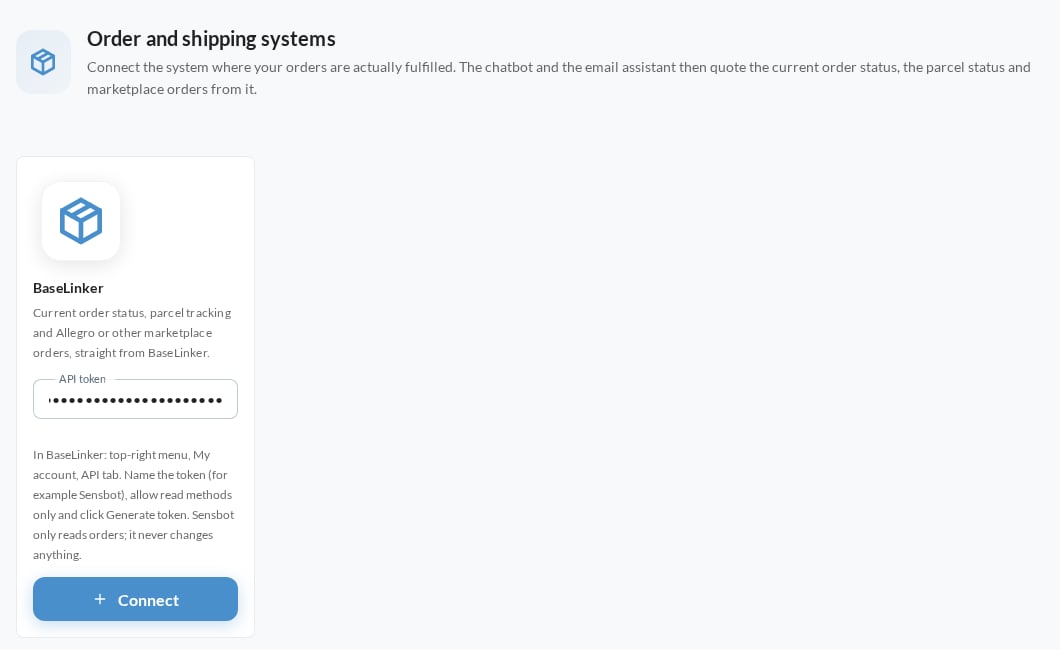 Sensbot checks the token before saving it. If BaseLinker does not accept it, the card says so and nothing is saved.
***
## Step 3 · Check the card
Once connected, the card shows:
* **Orders in the last 30 days**: how many orders BaseLinker holds for that period.
* **Order sources**: where those orders came from, for example your shop, Allegro or phone orders.
Sensbot checks the token before saving it. If BaseLinker does not accept it, the card says so and nothing is saved.
***
## Step 3 · Check the card
Once connected, the card shows:
* **Orders in the last 30 days**: how many orders BaseLinker holds for that period.
* **Order sources**: where those orders came from, for example your shop, Allegro or phone orders.
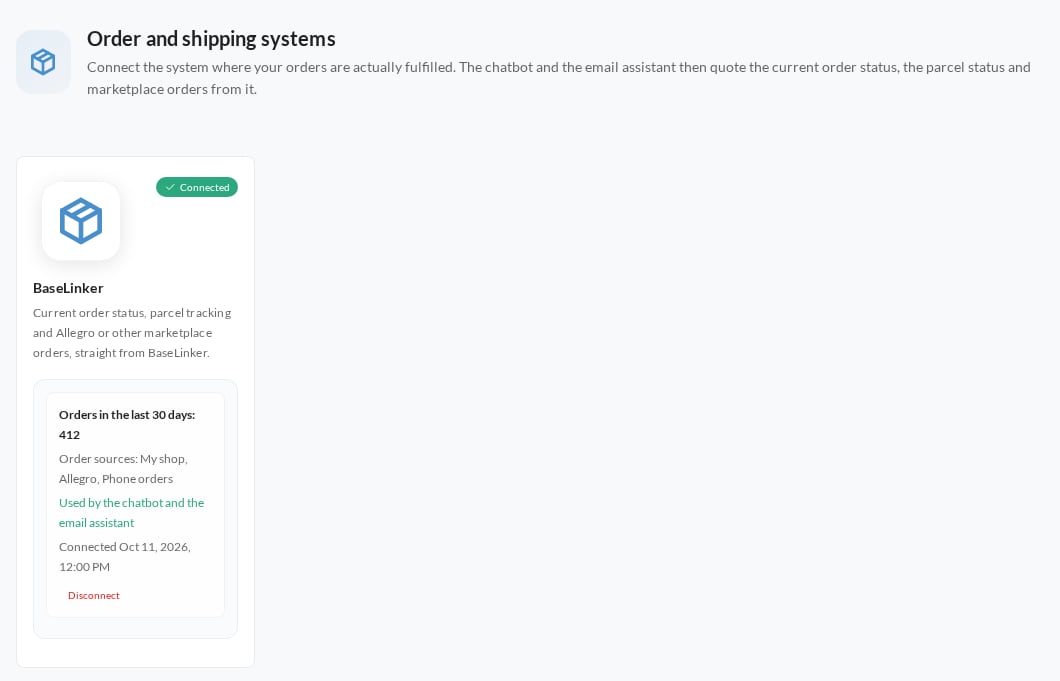 From now on the chatbot and the Email Assistant use BaseLinker for order questions.
***
## What the customer gets
| Question | Answer from BaseLinker |
| - | - |
| "What is the status of my order?" | The status as your shop names it for customers, never an internal status name |
| "Has my parcel shipped?" | Once it is sent: the courier, the tracking number and the tracking link |
| An Allegro, marketplace or phone order | Found by the customer's email address or phone number |
To get order details, the customer gives the order number plus the email address or phone number used on the order. In email, the sender's address counts as the email.
Allegro often hides the buyer's real email address behind its own, so for Allegro orders the phone number is the reliable way to find the order. Product questions are not answered from BaseLinker: they still come from your product feed or your shop platform.
***
## Disconnecting
On the BaseLinker card in **Integrations**, click **Disconnect**. The chatbot and the Email Assistant go back to the order data from your shop platform only. To cut access on BaseLinker's side too, delete the token in **My account → API**.
This documentation is built and hosted on [Mintlify](https://mintlify.com), a developer documentation platform.
From now on the chatbot and the Email Assistant use BaseLinker for order questions.
***
## What the customer gets
| Question | Answer from BaseLinker |
| - | - |
| "What is the status of my order?" | The status as your shop names it for customers, never an internal status name |
| "Has my parcel shipped?" | Once it is sent: the courier, the tracking number and the tracking link |
| An Allegro, marketplace or phone order | Found by the customer's email address or phone number |
To get order details, the customer gives the order number plus the email address or phone number used on the order. In email, the sender's address counts as the email.
Allegro often hides the buyer's real email address behind its own, so for Allegro orders the phone number is the reliable way to find the order. Product questions are not answered from BaseLinker: they still come from your product feed or your shop platform.
***
## Disconnecting
On the BaseLinker card in **Integrations**, click **Disconnect**. The chatbot and the Email Assistant go back to the order data from your shop platform only. To cut access on BaseLinker's side too, delete the token in **My account → API**.
This documentation is built and hosted on [Mintlify](https://mintlify.com), a developer documentation platform.