> ## Documentation Index
> Fetch the complete documentation index at: https://docs.sensbot.ai/llms.txt
> Use this file to discover all available pages before exploring further.
# Outlook Add-in – Usage
> How to use the Sensbot AI side panel inside Microsoft Outlook to generate and refine email replies
# Outlook Add-in – Usage
The usage experience is the same for both the classic desktop add-in and [Outlook on the web](/customization/email-assistant/outlook-addin/web-usage). Once you select an email, the Sensbot AI side panel shows identical content regardless of which Outlook client you use.
***
## Opening the add-in
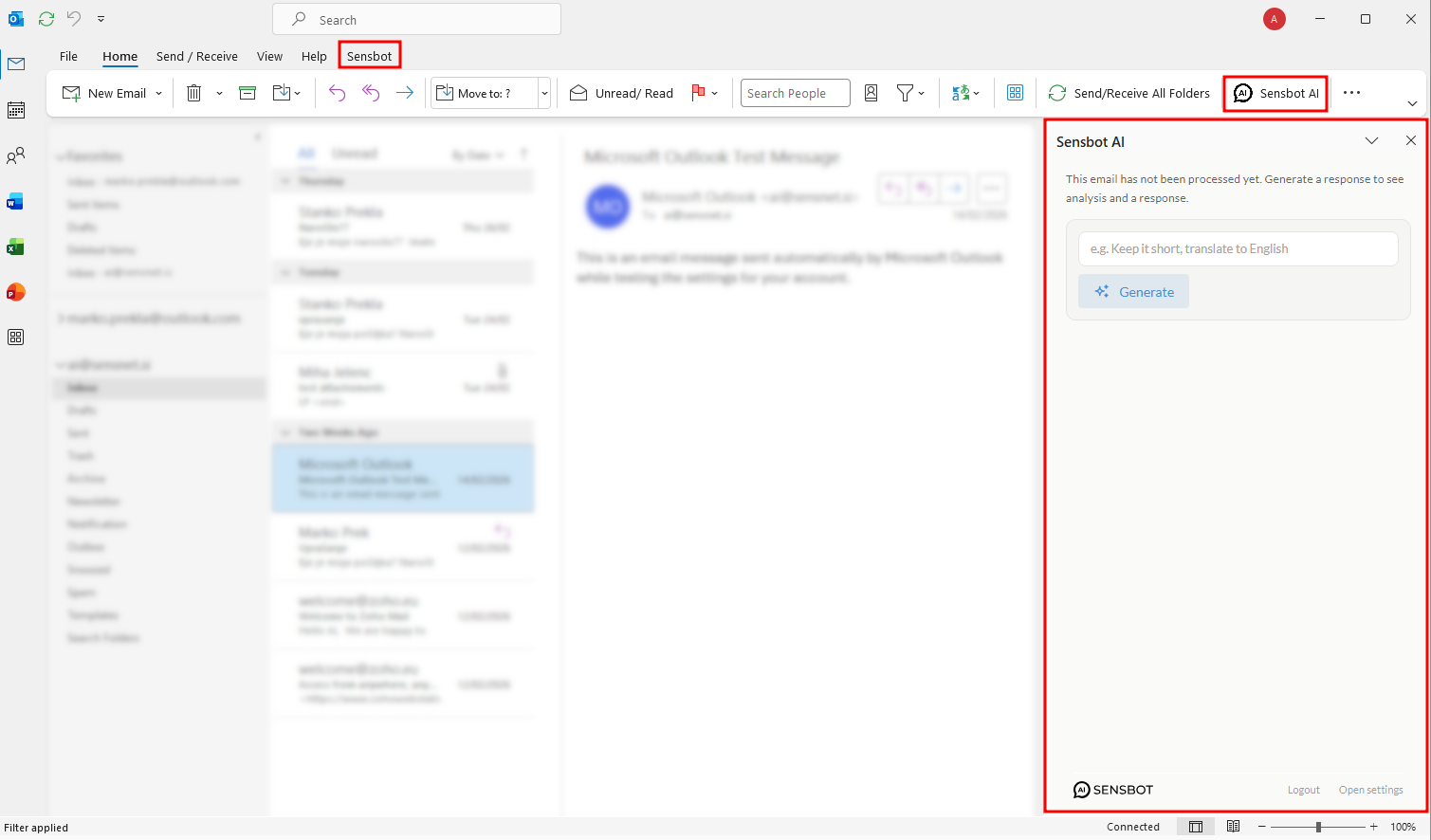
Click **Sensbot AI** in the Outlook ribbon (**Home** tab or **Sensbot** tab). A **Sensbot AI** task pane opens on the right side of the Outlook window.
 ***
## Selecting an email
When no email is selected, the panel shows a placeholder:
> **No email selected**\
> Select an email to generate a response.
Click any email in your inbox or folder list to activate the panel for that message. The panel immediately starts loading.
**In Mail view (inbox or folder list):** Select an email in the list. The panel loads that email automatically. Changing your selection updates the panel to the newly selected email.
**In an open email window:** Open an email in its own window and click **Sensbot AI** in the ribbon. The panel shows that specific email.
***
## Generating a response
If the email has not been processed yet, the panel shows:
> *This email has not been processed yet. Generate a response to see analysis and a reply draft.*
Below that you will find an optional **instructions field** and a **Generate** button.
***
## Selecting an email
When no email is selected, the panel shows a placeholder:
> **No email selected**\
> Select an email to generate a response.
Click any email in your inbox or folder list to activate the panel for that message. The panel immediately starts loading.
**In Mail view (inbox or folder list):** Select an email in the list. The panel loads that email automatically. Changing your selection updates the panel to the newly selected email.
**In an open email window:** Open an email in its own window and click **Sensbot AI** in the ribbon. The panel shows that specific email.
***
## Generating a response
If the email has not been processed yet, the panel shows:
> *This email has not been processed yet. Generate a response to see analysis and a reply draft.*
Below that you will find an optional **instructions field** and a **Generate** button.
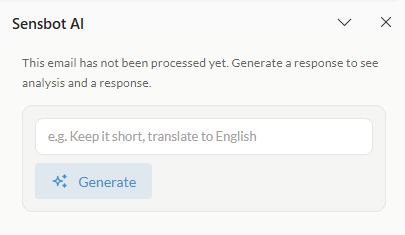 **Optional instructions** — Type a short hint before generating to guide the response, for example:
* *Keep it short*
* *Translate to English*
* *Be more formal*
Leave the field blank to let Sensbot decide on its own.
Click **Generate** (or press Enter inside the instructions field). The panel switches to a progress animation:
**Optional instructions** — Type a short hint before generating to guide the response, for example:
* *Keep it short*
* *Translate to English*
* *Be more formal*
Leave the field blank to let Sensbot decide on its own.
Click **Generate** (or press Enter inside the instructions field). The panel switches to a progress animation:
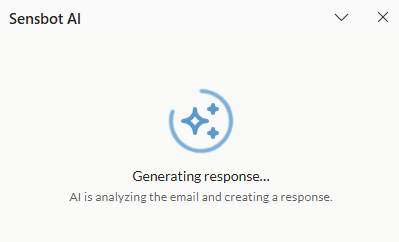 Sensbot reads the email, looks up relevant orders, products, or knowledge base entries from your store, and writes a draft reply in your brand voice.
***
## Response ready – two-tab view
Once processing is complete, the panel shows two tabs: **Response** and **Analysis**.
### Response tab
The **Response** tab shows the AI-generated draft reply.
Sensbot reads the email, looks up relevant orders, products, or knowledge base entries from your store, and writes a draft reply in your brand voice.
***
## Response ready – two-tab view
Once processing is complete, the panel shows two tabs: **Response** and **Analysis**.
### Response tab
The **Response** tab shows the AI-generated draft reply.
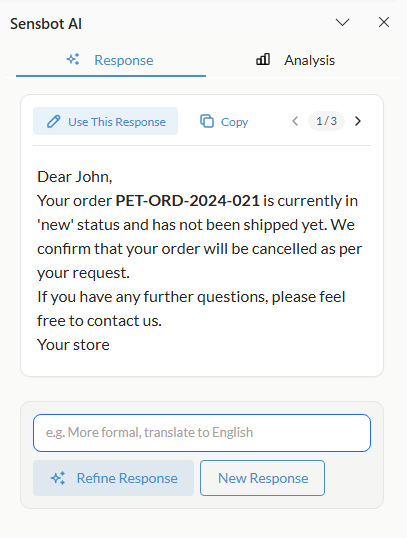 | Element | What it does |
| ------------------------ | ---------------------------------------------------------------------------------- |
| **Use this response** | Inserts the draft directly into Outlook's reply composer |
| **Copy** | Copies the plain-text version of the draft to the clipboard |
| Version arrows (1 / 2 …) | Navigate between multiple versions if you have refined the response more than once |
The draft is displayed as formatted HTML (bold text, paragraphs, signature) matching a typical reply email.
#### Refining the response
Below the draft is a **refine box**. Type an instruction and choose one of:
* **Refine response** — Keeps the same reasoning but adjusts tone, length, or language. The new version is added alongside the previous one and you can navigate between them using the version arrows.
* **New response** — Generates a completely fresh draft, ignoring the previous one.
### Analysis tab
The **Analysis** tab gives you insight into what Sensbot understood about the email.
| Element | What it does |
| ------------------------ | ---------------------------------------------------------------------------------- |
| **Use this response** | Inserts the draft directly into Outlook's reply composer |
| **Copy** | Copies the plain-text version of the draft to the clipboard |
| Version arrows (1 / 2 …) | Navigate between multiple versions if you have refined the response more than once |
The draft is displayed as formatted HTML (bold text, paragraphs, signature) matching a typical reply email.
#### Refining the response
Below the draft is a **refine box**. Type an instruction and choose one of:
* **Refine response** — Keeps the same reasoning but adjusts tone, length, or language. The new version is added alongside the previous one and you can navigate between them using the version arrows.
* **New response** — Generates a completely fresh draft, ignoring the previous one.
### Analysis tab
The **Analysis** tab gives you insight into what Sensbot understood about the email.
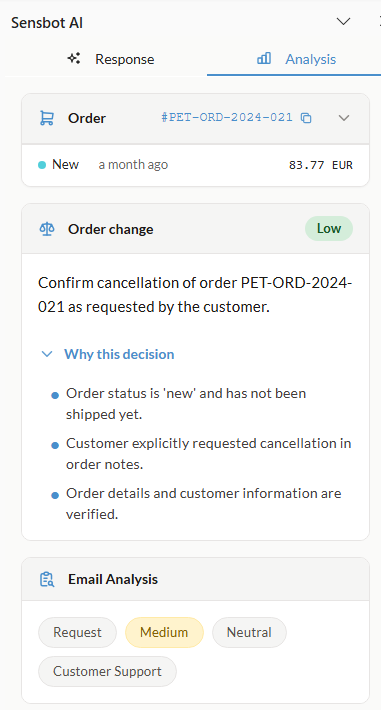 **Summary badges** — Coloured pills at the top summarise the email at a glance:
| Badge | Examples |
| ------------- | ---------------------------------------------------------- |
| **Intent** | Order inquiry, Return request, Complaint, General question |
| **Urgency** | High (red), Medium (yellow), Low (green) |
| **Sentiment** | Positive (green), Neutral (grey), Negative (red) |
| **Category** | Label matching your configured email categories |
**Order / Product card** — When the email references an order or product, a card appears with key details (order number, status, items, total, dates). Click the card to expand or collapse the full details.
**Decision card** — For emails that require a policy-based decision (e.g. a refund or return), a Decision card shows the recommended action, its risk level (Low / Medium / High), the reasoning behind it, and the store rules that guided the decision.
**Actions taken** — If Sensbot performed automated actions (e.g. tagged the email, created a task, updated an order), these appear as blue pills at the bottom of the tab.
***
## No response required
If the AI determines the email does not need a reply (e.g. a newsletter or auto-confirmation), the panel shows:
> **No Response Required**\
> This email does not require a reply. No response was generated.
You can still use the refine box to override this and request a draft manually.
***
## Using the draft in Outlook
Click **Use this response** in the Response tab. Sensbot inserts the formatted HTML draft directly into Outlook's reply window — ready to review, edit, and send.
**Summary badges** — Coloured pills at the top summarise the email at a glance:
| Badge | Examples |
| ------------- | ---------------------------------------------------------- |
| **Intent** | Order inquiry, Return request, Complaint, General question |
| **Urgency** | High (red), Medium (yellow), Low (green) |
| **Sentiment** | Positive (green), Neutral (grey), Negative (red) |
| **Category** | Label matching your configured email categories |
**Order / Product card** — When the email references an order or product, a card appears with key details (order number, status, items, total, dates). Click the card to expand or collapse the full details.
**Decision card** — For emails that require a policy-based decision (e.g. a refund or return), a Decision card shows the recommended action, its risk level (Low / Medium / High), the reasoning behind it, and the store rules that guided the decision.
**Actions taken** — If Sensbot performed automated actions (e.g. tagged the email, created a task, updated an order), these appear as blue pills at the bottom of the tab.
***
## No response required
If the AI determines the email does not need a reply (e.g. a newsletter or auto-confirmation), the panel shows:
> **No Response Required**\
> This email does not require a reply. No response was generated.
You can still use the refine box to override this and request a draft manually.
***
## Using the draft in Outlook
Click **Use this response** in the Response tab. Sensbot inserts the formatted HTML draft directly into Outlook's reply window — ready to review, edit, and send.
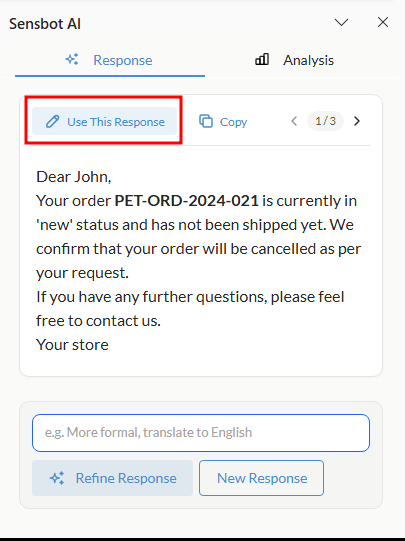 Alternatively, click **Copy** to copy the plain text and paste it anywhere you need.