> ## Documentation Index
> Fetch the complete documentation index at: https://docs.sensbot.ai/llms.txt
> Use this file to discover all available pages before exploring further.
# Outlook Add-in – Installation
> How to install the Sensbot AI add-in for classic desktop Outlook on Windows
# Outlook Add-in – Installation
There are two versions of the Sensbot Outlook Add-in. This page covers the **classic desktop** version, for the older classic Outlook application on Windows.
Using **Outlook on the web** or the **new Outlook for Windows** (the new desktop app)? Don't use this installer — follow [Web installation](/customization/email-assistant/outlook-addin/web-installation) instead. Both use the same web add-in.
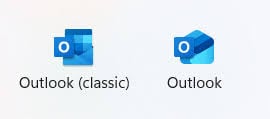
Not sure which app you have? Check the icon — **Outlook (classic)** on the left (this installer), the **new Outlook** on the right (use the web procedure):
 ***
## Classic Outlook (desktop)
The desktop add-in runs inside the Microsoft Outlook application on Windows. It works with Microsoft 365 accounts as well as any other email provider you have set up in Outlook (Gmail, IMAP/SMTP, and others).
### Requirements
* **Windows** with **Microsoft Outlook** (desktop) installed
* **.NET Framework 4.7.2** or higher (Windows will prompt you to install it if missing)
* **Microsoft Edge WebView2** (pre-installed on Windows 10 and 11; download from Microsoft if prompted)
### Installation steps
**1. Download the installer**
Download the installer from:
**[https://sensbot.ai/downloads/SensbotOutlookAddIn.msi](https://sensbot.ai/downloads/SensbotOutlookAddIn.msi)**
**2. Run the installer**
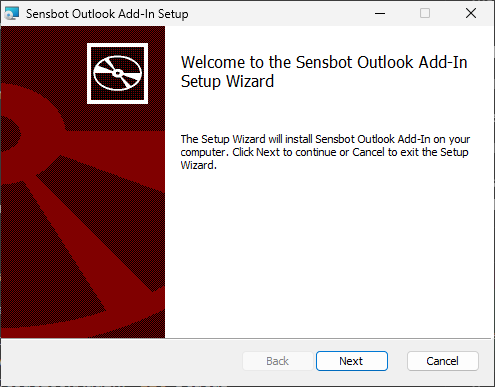
Double-click the downloaded `SensbotOutlookAddIn.msi` file to launch the setup wizard.
***
## Classic Outlook (desktop)
The desktop add-in runs inside the Microsoft Outlook application on Windows. It works with Microsoft 365 accounts as well as any other email provider you have set up in Outlook (Gmail, IMAP/SMTP, and others).
### Requirements
* **Windows** with **Microsoft Outlook** (desktop) installed
* **.NET Framework 4.7.2** or higher (Windows will prompt you to install it if missing)
* **Microsoft Edge WebView2** (pre-installed on Windows 10 and 11; download from Microsoft if prompted)
### Installation steps
**1. Download the installer**
Download the installer from:
**[https://sensbot.ai/downloads/SensbotOutlookAddIn.msi](https://sensbot.ai/downloads/SensbotOutlookAddIn.msi)**
**2. Run the installer**
Double-click the downloaded `SensbotOutlookAddIn.msi` file to launch the setup wizard.
 **3. Follow the setup wizard**
Accept the licence agreement and choose an installation folder (the default is recommended). Click **Install** and wait for the setup to finish.
**4. Complete the installation**
When the wizard shows the completion screen, take note of the message asking you to restart Outlook. Click **Finish**.
**5. Restart Outlook**
Close Outlook completely — including from the system tray if it is running there — then start Outlook again. The add-in only loads after a full restart.
### Finding and opening the add-in
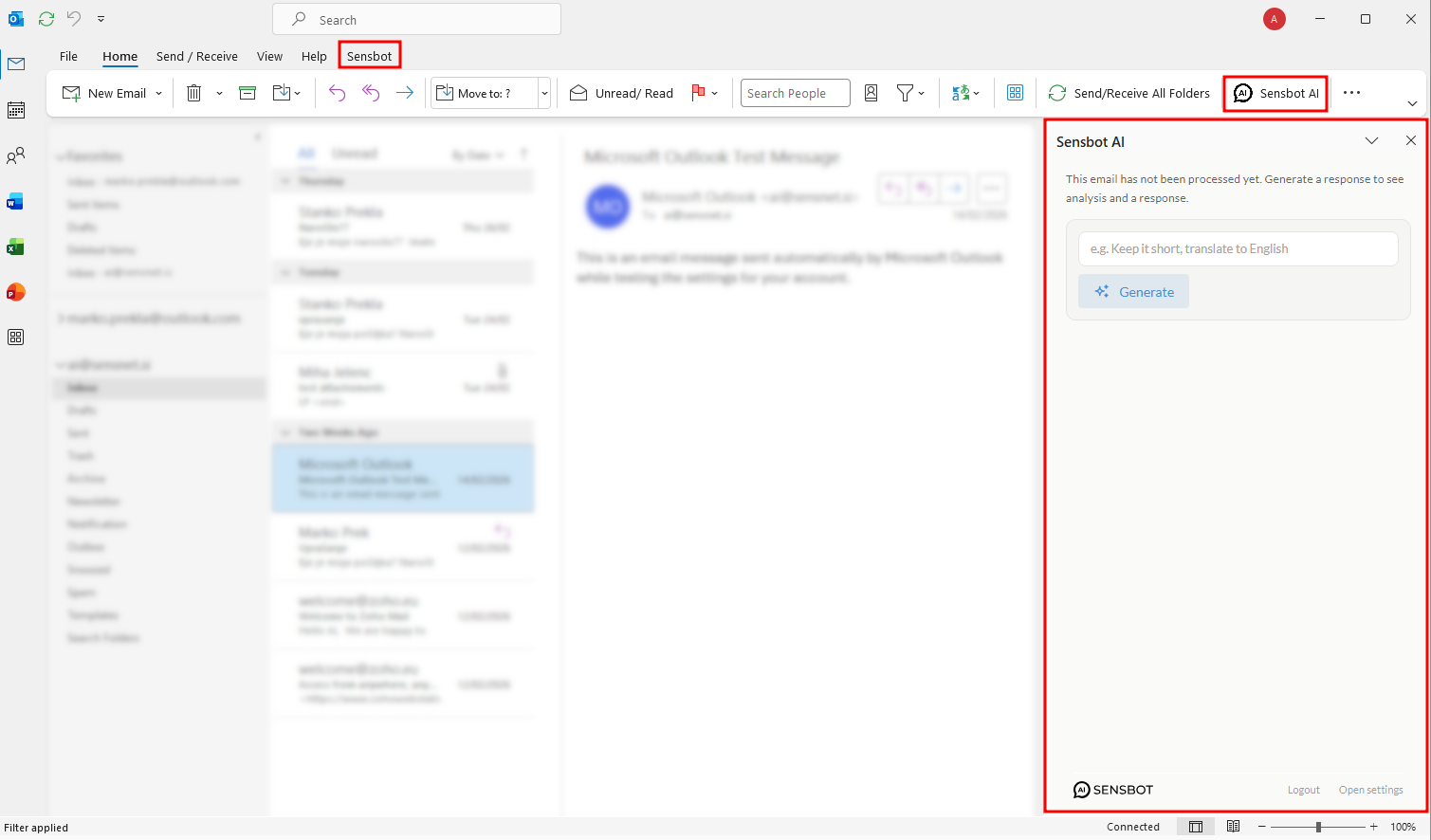
After restarting Outlook, the **Sensbot AI** button appears in two places in the ribbon:
* **Home** tab → **Sensbot AI** group → **Sensbot AI** button
* **Sensbot** tab → **AI** group → **Sensbot AI** button
Click either button to open the **Sensbot AI** side pane on the right side of the Outlook window.
**3. Follow the setup wizard**
Accept the licence agreement and choose an installation folder (the default is recommended). Click **Install** and wait for the setup to finish.
**4. Complete the installation**
When the wizard shows the completion screen, take note of the message asking you to restart Outlook. Click **Finish**.
**5. Restart Outlook**
Close Outlook completely — including from the system tray if it is running there — then start Outlook again. The add-in only loads after a full restart.
### Finding and opening the add-in
After restarting Outlook, the **Sensbot AI** button appears in two places in the ribbon:
* **Home** tab → **Sensbot AI** group → **Sensbot AI** button
* **Sensbot** tab → **AI** group → **Sensbot AI** button
Click either button to open the **Sensbot AI** side pane on the right side of the Outlook window.
 ### Login to Sensbot
When you open the add-in for the first time, you'll need to log in to your Sensbot account.
### Login to Sensbot
When you open the add-in for the first time, you'll need to log in to your Sensbot account.
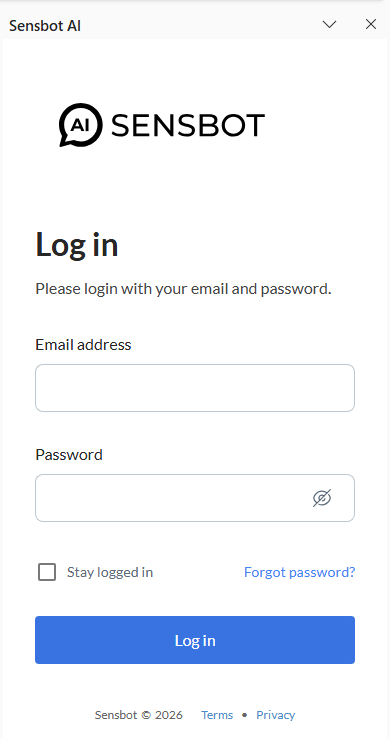 Enter your email and password to access the add-in.
#### Don't have standalone access yet?
If you've been using Sensbot only through your e-commerce platform (Shopify, IdoSell, Shoper, etc.) and don't have a direct login password yet, you need to enable standalone access first:
1. Open the Sensbot app inside your e-commerce platform
2. Go to **Account → Profile**
3. Click the orange button **"Enable direct access"**
Enter your email and password to access the add-in.
#### Don't have standalone access yet?
If you've been using Sensbot only through your e-commerce platform (Shopify, IdoSell, Shoper, etc.) and don't have a direct login password yet, you need to enable standalone access first:
1. Open the Sensbot app inside your e-commerce platform
2. Go to **Account → Profile**
3. Click the orange button **"Enable direct access"**
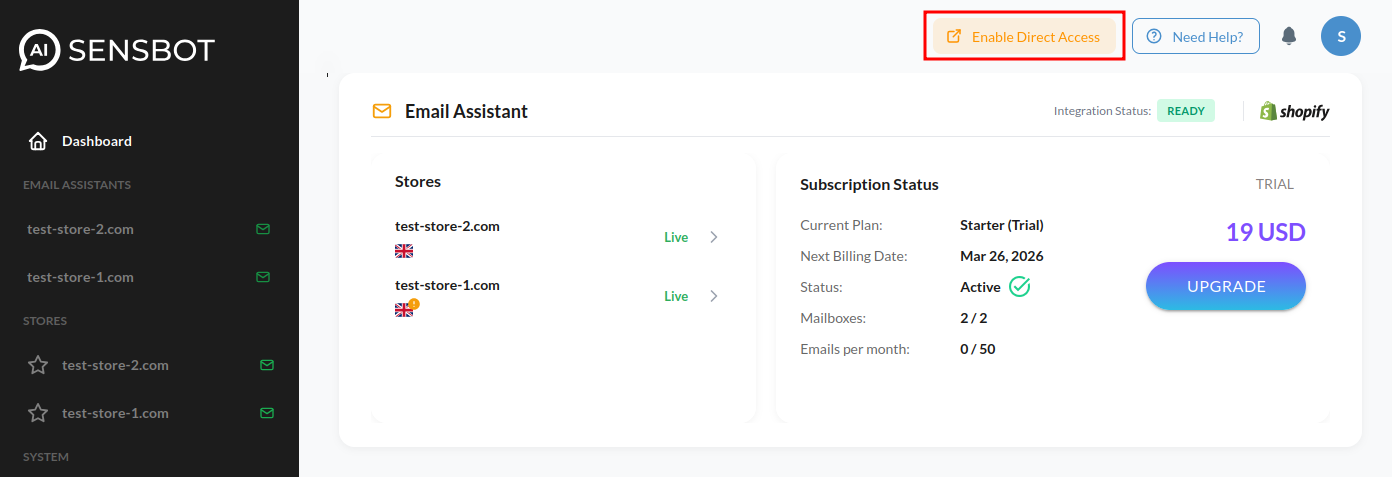 This will allow you to create a password for your account and log in directly to [https://platform.sensbot.ai/](https://platform.sensbot.ai/) or inside the Sensbot Outlook add-in.
### Uninstalling
Go to **Settings → Apps → Installed apps** (or **Add or remove programs**), find **Sensbot Outlook Add-In**, and select **Uninstall**. Restart Outlook after the process completes.
***
## Outlook on the web
Using Outlook on the web instead of the desktop app? The web add-in installs from a manifest link — no separate installer required. See [Web installation](/customization/email-assistant/outlook-addin/web-installation) for the administrator (Microsoft 365) and personal (Outlook.com) steps.
This will allow you to create a password for your account and log in directly to [https://platform.sensbot.ai/](https://platform.sensbot.ai/) or inside the Sensbot Outlook add-in.
### Uninstalling
Go to **Settings → Apps → Installed apps** (or **Add or remove programs**), find **Sensbot Outlook Add-In**, and select **Uninstall**. Restart Outlook after the process completes.
***
## Outlook on the web
Using Outlook on the web instead of the desktop app? The web add-in installs from a manifest link — no separate installer required. See [Web installation](/customization/email-assistant/outlook-addin/web-installation) for the administrator (Microsoft 365) and personal (Outlook.com) steps.