> ## Documentation Index
> Fetch the complete documentation index at: https://docs.sensbot.ai/llms.txt
> Use this file to discover all available pages before exploring further.
# Outlook Add-in
> Use Sensbot AI directly inside Microsoft Outlook as a side panel — for classic desktop Outlook, Outlook on the web, and the new Outlook for Windows
# Sensbot AI – Outlook Add-in
The Sensbot Outlook Add-in brings AI-powered email assistance directly into Microsoft Outlook. Without switching apps or copying email content, you get instant AI-generated reply drafts, email analysis, and decision support — all inside a side panel next to your inbox.
## Two versions
There are two versions of the add-in, depending on how you use Outlook. On Windows there are also **two different Outlook desktop apps** — the older **Outlook (classic)** and the **new Outlook** — each of which uses a different version of the add-in:
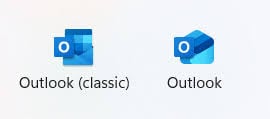 The new Outlook is a rebuilt app (based on the same technology as Outlook on the web), while classic Outlook is the long-standing desktop program. The quickest way to tell which one you're in: look at the **top-right corner of the Outlook window** — if you see a **New Outlook** toggle, you're in the new Outlook; if there's none, you're in classic Outlook.
### Classic Outlook (desktop)
The desktop add-in works with the classic Microsoft Outlook application on Windows. It integrates as a task pane in the Outlook ribbon and is compatible not only with Microsoft 365 email accounts but also with **any other email provider** you have connected to Outlook — including Gmail, IMAP/SMTP, and others.
This version is available now. See [Installation](/customization/email-assistant/outlook-addin/installation) to get started.
### Outlook on the web **and the new Outlook for Windows**
The web add-in works in Outlook on the web for both Microsoft 365 (work/business) and personal Outlook.com accounts. It appears in the same Outlook add-ins toolbar and shows the identical Sensbot AI panel.
The web add-in works **only with Microsoft mailboxes** (Microsoft 365 or Outlook.com). To use Sensbot with a **Gmail, IMAP, or POP** account inside Outlook, use the [classic desktop add-in](/customization/email-assistant/outlook-addin/installation) instead — it works with any provider connected to classic Outlook.
The **new Outlook for Windows** (the new desktop app that replaces classic Outlook) uses the **same web add-in and the exact same install and usage procedure** as Outlook on the web. If you use the new Outlook app, follow the web pages — not the classic desktop installer.
Business accounts are deployed centrally by an administrator; personal accounts install it themselves. See [Web installation](/customization/email-assistant/outlook-addin/web-installation) to get started.
## How it works
Once installed, the add-in adds a **Sensbot AI** button to the Outlook ribbon. Clicking it opens a side panel. When you select an email, the panel automatically loads that message and either shows a previously generated response or lets you generate a new one with a single click.
The panel is identical in both versions — the same AI analysis, response tabs, and refinement tools are available whether you use the desktop app or the web client.
For full details on working with the panel, see [Usage](/customization/email-assistant/outlook-addin/usage).
## Where it works
| Outlook client | Supported | Install path |
| --------------------------------------- | --------- | ---------------------------------------------------------------------------------------------------- |
| Outlook on the web (outlook.office.com) | ✅ | [Web installation](/customization/email-assistant/outlook-addin/web-installation) |
| New Outlook for Windows | ✅ | [Web installation](/customization/email-assistant/outlook-addin/web-installation) |
| Outlook for Mac | ✅ | [Web installation](/customization/email-assistant/outlook-addin/web-installation) (admin deployment) |
| Classic Outlook for Windows | ✅ | [Classic desktop installer](/customization/email-assistant/outlook-addin/installation) |
| Outlook.com (personal / free) | ✅ | Panel works; pinning isn't available (Microsoft limitation) |
| Outlook mobile apps | ❌ | Not yet |
A **Microsoft 365 business subscription** (Exchange Online mailboxes) is required for the full experience, including **shared mailboxes** and the **pinned panel**. See [Microsoft 365 Setup](/customization/email-assistant/outlook-addin/microsoft-365-setup).
## Requirements
| Version | Requirements |
| -------------------------------------------------- | ---------------------------------------------------------------------------------------------------------------- |
| Classic Outlook (desktop) | Windows, classic Microsoft Outlook (desktop), .NET Framework 4.7.2+, Microsoft Edge WebView2 |
| Outlook on the web **and new Outlook for Windows** | A modern browser or the new Outlook app; a Microsoft 365 mailbox (business) or an Outlook.com account (personal) |
The new Outlook is a rebuilt app (based on the same technology as Outlook on the web), while classic Outlook is the long-standing desktop program. The quickest way to tell which one you're in: look at the **top-right corner of the Outlook window** — if you see a **New Outlook** toggle, you're in the new Outlook; if there's none, you're in classic Outlook.
### Classic Outlook (desktop)
The desktop add-in works with the classic Microsoft Outlook application on Windows. It integrates as a task pane in the Outlook ribbon and is compatible not only with Microsoft 365 email accounts but also with **any other email provider** you have connected to Outlook — including Gmail, IMAP/SMTP, and others.
This version is available now. See [Installation](/customization/email-assistant/outlook-addin/installation) to get started.
### Outlook on the web **and the new Outlook for Windows**
The web add-in works in Outlook on the web for both Microsoft 365 (work/business) and personal Outlook.com accounts. It appears in the same Outlook add-ins toolbar and shows the identical Sensbot AI panel.
The web add-in works **only with Microsoft mailboxes** (Microsoft 365 or Outlook.com). To use Sensbot with a **Gmail, IMAP, or POP** account inside Outlook, use the [classic desktop add-in](/customization/email-assistant/outlook-addin/installation) instead — it works with any provider connected to classic Outlook.
The **new Outlook for Windows** (the new desktop app that replaces classic Outlook) uses the **same web add-in and the exact same install and usage procedure** as Outlook on the web. If you use the new Outlook app, follow the web pages — not the classic desktop installer.
Business accounts are deployed centrally by an administrator; personal accounts install it themselves. See [Web installation](/customization/email-assistant/outlook-addin/web-installation) to get started.
## How it works
Once installed, the add-in adds a **Sensbot AI** button to the Outlook ribbon. Clicking it opens a side panel. When you select an email, the panel automatically loads that message and either shows a previously generated response or lets you generate a new one with a single click.
The panel is identical in both versions — the same AI analysis, response tabs, and refinement tools are available whether you use the desktop app or the web client.
For full details on working with the panel, see [Usage](/customization/email-assistant/outlook-addin/usage).
## Where it works
| Outlook client | Supported | Install path |
| --------------------------------------- | --------- | ---------------------------------------------------------------------------------------------------- |
| Outlook on the web (outlook.office.com) | ✅ | [Web installation](/customization/email-assistant/outlook-addin/web-installation) |
| New Outlook for Windows | ✅ | [Web installation](/customization/email-assistant/outlook-addin/web-installation) |
| Outlook for Mac | ✅ | [Web installation](/customization/email-assistant/outlook-addin/web-installation) (admin deployment) |
| Classic Outlook for Windows | ✅ | [Classic desktop installer](/customization/email-assistant/outlook-addin/installation) |
| Outlook.com (personal / free) | ✅ | Panel works; pinning isn't available (Microsoft limitation) |
| Outlook mobile apps | ❌ | Not yet |
A **Microsoft 365 business subscription** (Exchange Online mailboxes) is required for the full experience, including **shared mailboxes** and the **pinned panel**. See [Microsoft 365 Setup](/customization/email-assistant/outlook-addin/microsoft-365-setup).
## Requirements
| Version | Requirements |
| -------------------------------------------------- | ---------------------------------------------------------------------------------------------------------------- |
| Classic Outlook (desktop) | Windows, classic Microsoft Outlook (desktop), .NET Framework 4.7.2+, Microsoft Edge WebView2 |
| Outlook on the web **and new Outlook for Windows** | A modern browser or the new Outlook app; a Microsoft 365 mailbox (business) or an Outlook.com account (personal) |