> ## Documentation Index
> Fetch the complete documentation index at: https://docs.sensbot.ai/llms.txt
> Use this file to discover all available pages before exploring further.
# Gmail Add-on – Usage
> How to use the Sensbot AI add-on inside Gmail to generate and refine email replies
# Gmail Add-on – Usage
Once you open an email, the Sensbot AI side panel shows the same kind of content as in Outlook: draft replies, order and returns context, past orders, and reasoning. In Gmail everything appears in a **single pane** (there are no separate Response and Analysis tabs).
***
## Opening the add-on
Click the **Sensbot** icon in the right tools pane. The **Sensbot AI** side panel opens on the right side of the Gmail window.
 ***
## Selecting an email
When no email is selected, the panel shows a placeholder:
> **No email selected**\
> Select an email to generate a response.
Click any email in your inbox or folder list to activate the panel for that message. The panel immediately starts loading.
**In Mail view (inbox or folder list):** Select an email in the list. The panel loads that email automatically. Changing your selection updates the panel to the newly selected email.
***
## Generating a response
If the email has not been processed yet, the panel shows that no response has been generated yet and invites you to generate one.
**Optional instructions** — You can type a short hint before generating to guide the response, for example:
* *Keep it short*
* *Translate to English*
* *Be more formal*
Leave the field blank to let Sensbot decide on its own.
Click **Generate** (or the equivalent action in the pane). Sensbot reads the email, looks up relevant orders, products, or knowledge base entries from your store, and writes a draft reply in your brand voice. If a response has already been generated in the background, the draft and context are shown directly in the panel.
***
## Response ready – draft and context in one pane
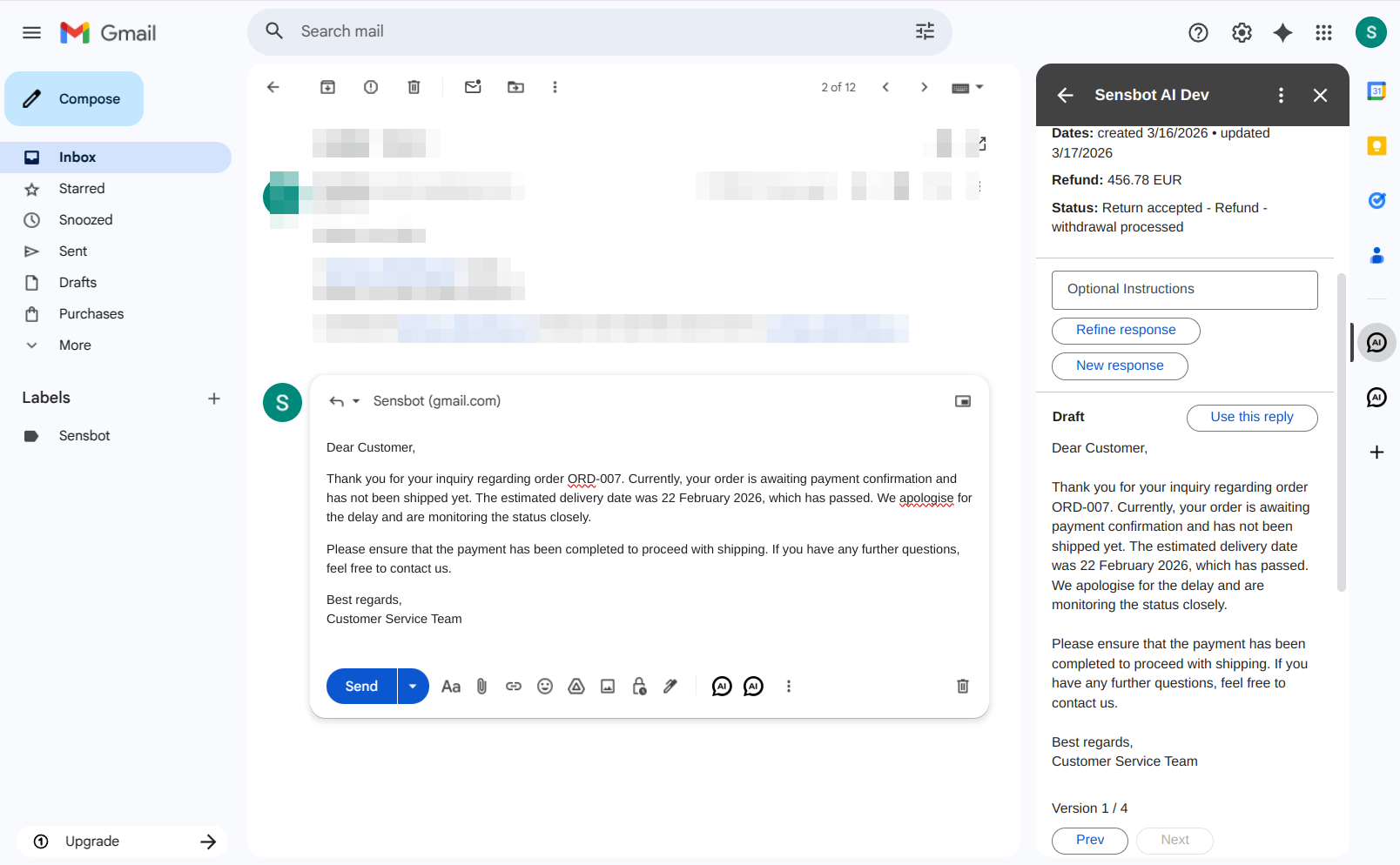
When processing is complete, the panel shows the AI-generated draft and supporting context in a single view (unlike Outlook’s two-tab layout).
**Draft and actions:**
| Element | What it does |
| ------------------------ | ------------------------------------------------------------------------------------- |
| **Use this reply** | Opens a Gmail compose window with the draft inserted, ready to review, edit, and send |
| Version arrows (1 / 2 …) | Navigate between multiple versions if you have refined the response more than once |
The draft is displayed with formatting (paragraphs, signature) matching a typical reply email.
**Refining the response** — Below the draft you can use the **Optional instructions** field and then:
* **Refine response** — Keeps the same reasoning but adjusts tone, length, or language. The new version is added alongside the previous one and you can navigate between them using the version arrows.
* **New response** — Generates a completely fresh draft, ignoring the previous one.
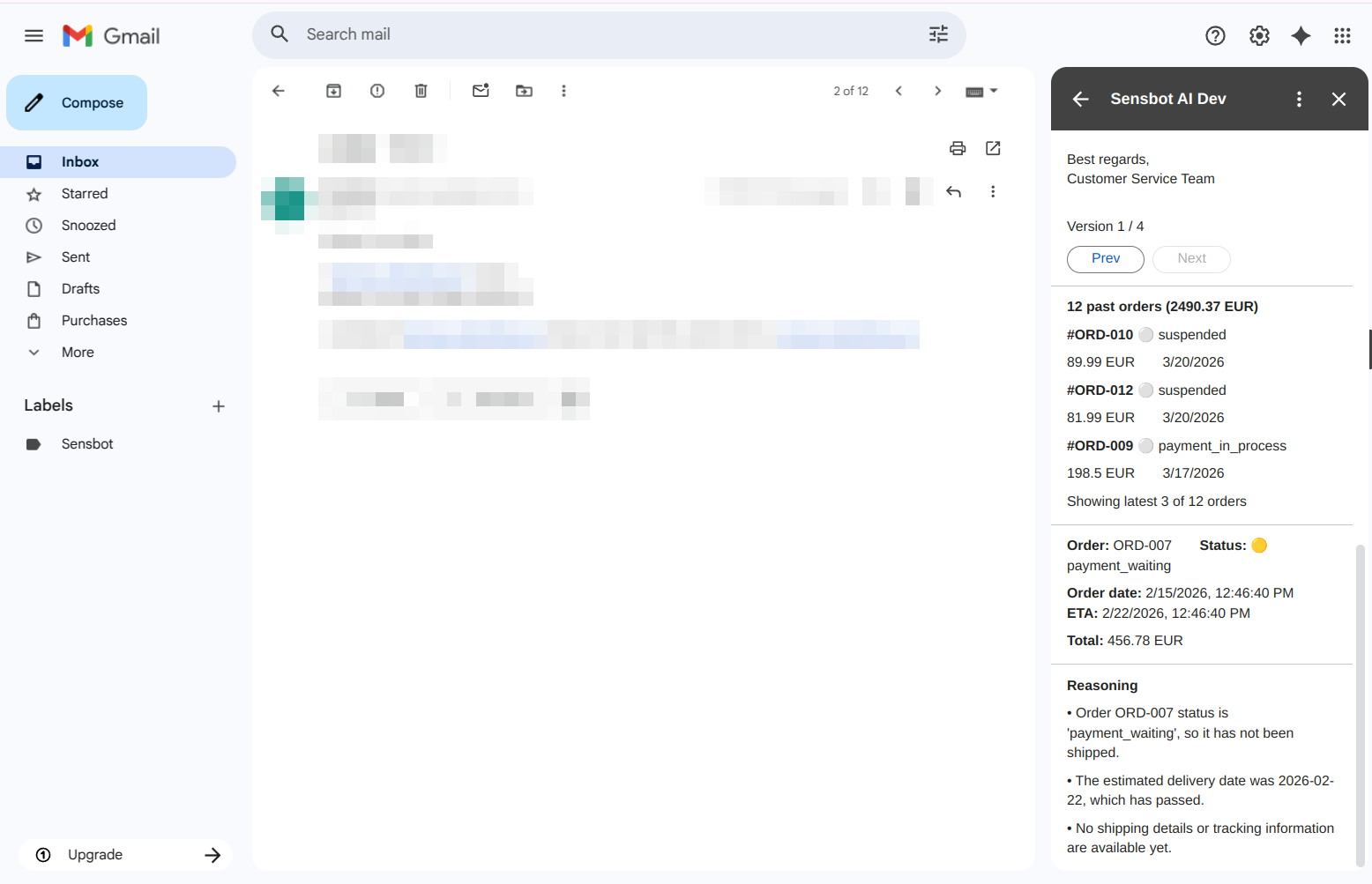
**Order and returns** — When the email references an order or return, the pane shows related order and returns details (order number, status, items, total, dates, refund status). The same kind of data as in Outlook’s order/product card is shown here in the single pane.
**Past orders** — The pane loads past orders for that customer so the reply can take their history into account.
**Reasoning** — A **Reasoning** section explains how Sensbot used the order status and context to generate the reply (similar to the insight you get from the Analysis tab in Outlook).
***
## Selecting an email
When no email is selected, the panel shows a placeholder:
> **No email selected**\
> Select an email to generate a response.
Click any email in your inbox or folder list to activate the panel for that message. The panel immediately starts loading.
**In Mail view (inbox or folder list):** Select an email in the list. The panel loads that email automatically. Changing your selection updates the panel to the newly selected email.
***
## Generating a response
If the email has not been processed yet, the panel shows that no response has been generated yet and invites you to generate one.
**Optional instructions** — You can type a short hint before generating to guide the response, for example:
* *Keep it short*
* *Translate to English*
* *Be more formal*
Leave the field blank to let Sensbot decide on its own.
Click **Generate** (or the equivalent action in the pane). Sensbot reads the email, looks up relevant orders, products, or knowledge base entries from your store, and writes a draft reply in your brand voice. If a response has already been generated in the background, the draft and context are shown directly in the panel.
***
## Response ready – draft and context in one pane
When processing is complete, the panel shows the AI-generated draft and supporting context in a single view (unlike Outlook’s two-tab layout).
**Draft and actions:**
| Element | What it does |
| ------------------------ | ------------------------------------------------------------------------------------- |
| **Use this reply** | Opens a Gmail compose window with the draft inserted, ready to review, edit, and send |
| Version arrows (1 / 2 …) | Navigate between multiple versions if you have refined the response more than once |
The draft is displayed with formatting (paragraphs, signature) matching a typical reply email.
**Refining the response** — Below the draft you can use the **Optional instructions** field and then:
* **Refine response** — Keeps the same reasoning but adjusts tone, length, or language. The new version is added alongside the previous one and you can navigate between them using the version arrows.
* **New response** — Generates a completely fresh draft, ignoring the previous one.
**Order and returns** — When the email references an order or return, the pane shows related order and returns details (order number, status, items, total, dates, refund status). The same kind of data as in Outlook’s order/product card is shown here in the single pane.
**Past orders** — The pane loads past orders for that customer so the reply can take their history into account.
**Reasoning** — A **Reasoning** section explains how Sensbot used the order status and context to generate the reply (similar to the insight you get from the Analysis tab in Outlook).
 ***
## No response required
If the AI determines the email does not need a reply (e.g. a newsletter or auto-confirmation), the panel may indicate that no response was generated. You can still use the optional instructions and **New response** to request a draft manually.
***
## Using the draft in Gmail
Click **Use this reply** in the Sensbot pane. A Gmail compose window opens with the generated draft inserted — ready to review, edit, and send.
***
## No response required
If the AI determines the email does not need a reply (e.g. a newsletter or auto-confirmation), the panel may indicate that no response was generated. You can still use the optional instructions and **New response** to request a draft manually.
***
## Using the draft in Gmail
Click **Use this reply** in the Sensbot pane. A Gmail compose window opens with the generated draft inserted — ready to review, edit, and send.