> ## Documentation Index
> Fetch the complete documentation index at: https://docs.sensbot.ai/llms.txt
> Use this file to discover all available pages before exploring further.
# Colors & Branding
> Customize the chatbot color scheme and branding
Make your Sensbot AI chatbot visually consistent with your brand by customizing colors, logos, and icons. These visual elements help create a seamless, professional experience for your customers.
## Color Customization
### Main Color (Accent Color)
The primary color used throughout the chat interface, including:
* Chat bubbles (bot messages)
* Buttons and interactive elements
* Header background
* Highlighted text and links
**How to Choose:**
* Match your brand's primary color
* Ensure good contrast with white text
* Test readability on both light and dark backgrounds
## Visual Brand Elements
### Company Logo
Your brand logo appears in the chat window header, providing immediate brand recognition.
**Specifications:**
* **Recommended size:** 64×64 pixels
* **Formats:** PNG, SVG, JPG
* **Best practice:** Use a transparent PNG or SVG for clean appearance
* **Placement:** Top-left corner of the chat header
**Tips:**
* Use a square or icon version of your logo (not full wide logo)
* Ensure logo is visible against the header background
* Keep file size under 100KB for fast loading
### Avatar Image
The AI assistant's profile picture, displayed next to each bot message and in the chat header.
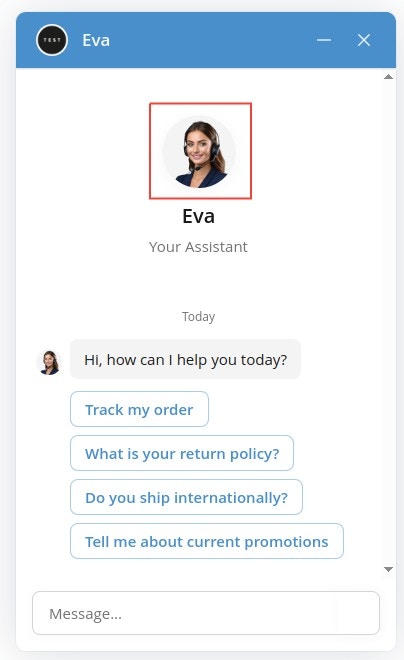 **Specifications:**
* **Recommended size:** 64×64 pixels
* **Formats:** PNG, SVG, JPG
* **Style options:**
* Your company logo (reinforces brand)
* Generic assistant icon
* Custom character illustration
* Photo of a team member (if positioning as human-assisted)
**Creative Ideas:**
* **Product-focused:** Icon representing your product category (bike for bike shop, book for bookstore)
* **Mascot:** If you have a brand mascot, use it here
* **Professional:** Abstract geometric shape in your brand colors
* **Human touch:** Illustrated character matching your assistant's name and gender
### Launcher Icon
The small icon shown in the chat bubble before visitors open the chat window.
**Specifications:**
* **Recommended size:** 64×64 pixels
* **Formats:** PNG, SVG, JPG
* **Style options:**
* Your company logo (reinforces brand)
* Generic assistant icon
* Custom character illustration
* Photo of a team member (if positioning as human-assisted)
**Creative Ideas:**
* **Product-focused:** Icon representing your product category (bike for bike shop, book for bookstore)
* **Mascot:** If you have a brand mascot, use it here
* **Professional:** Abstract geometric shape in your brand colors
* **Human touch:** Illustrated character matching your assistant's name and gender
### Launcher Icon
The small icon shown in the chat bubble before visitors open the chat window.
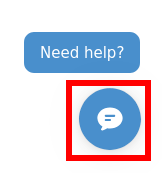 **Specifications:**
* **Recommended size:** 50×50 pixels
* **Formats:** PNG, SVG
* **Common choices:**
* Chat bubble icon (default)
* Message icon
* Your simplified company logo
* Question mark icon
**Best Practices:**
* Keep it simple and recognizable even at small size
* Ensure good contrast against your website's background
* Use your accent color or brand color
* Consider animation compatibility
## Next Steps
* **[Widget Layout & Position](/customization/appearance/layout)** - Adjust where and how the chatbot appears
* **[Behavior & Tone](/customization/behavior)** - Define your chatbot's communication style
**Specifications:**
* **Recommended size:** 50×50 pixels
* **Formats:** PNG, SVG
* **Common choices:**
* Chat bubble icon (default)
* Message icon
* Your simplified company logo
* Question mark icon
**Best Practices:**
* Keep it simple and recognizable even at small size
* Ensure good contrast against your website's background
* Use your accent color or brand color
* Consider animation compatibility
## Next Steps
* **[Widget Layout & Position](/customization/appearance/layout)** - Adjust where and how the chatbot appears
* **[Behavior & Tone](/customization/behavior)** - Define your chatbot's communication style